<\/HEAD>
When starting ArcGIS Pro with Google accounts, the error "Script Error" may occur.<\/P>
 <\/P>
<\/P>
Solution 1:<\/STRONG><\/P>Click on Windows Start> Search for the Run program.<\/LI>Enter regedit in the window and click OK.  <\/LI>Search for the following registry key:<\/LI><\/OL>HKEY_CURRENT_USER\Software\Microsoft\Internet Explorer\Main\FeatureControl\FEATURE_BROWSER_EMULATION<\/PRE>Add a new DWORD (32-bit) value for ArcGISPro.exe.<\/LI>Right-click FEATURE_BROWSER_EMULATION and click New> DWORD (32-bit) Value.<\/LI>Name the key ArcGISPro.exe.<\/LI>Right-click the key and click Modify.<\/LI>Modify the value data to 2af9 and click OK.<\/LI><\/OL>https:\/\/support.esri.com\/en\/Technical-Article\/000022667<\/A><\/P>
Solution 2:<\/STRONG><\/P>Internet Explorer Configuration<\/STRONG><\/LI><\/OL>In Internet Explorer>Internet Options>Security: Change the security level in "Internet and Local Intranet" to "Medium"<\/P> <\/P><\/P>In Internet Explorer>Internet Options>Security : Change the security level in "Local Intranet" to "Low"<\/SPAN><\/P>
 <\/P><\/P>In Internet Explorer>Internet Options>Trusted Sites>Sites : Add the following domains<\/SPAN>
https://*.arcgis.comhttps://*.arcgisonline.comhttps://*.amazonaws.comhttps://*.virtualearth.net https://*.esri.com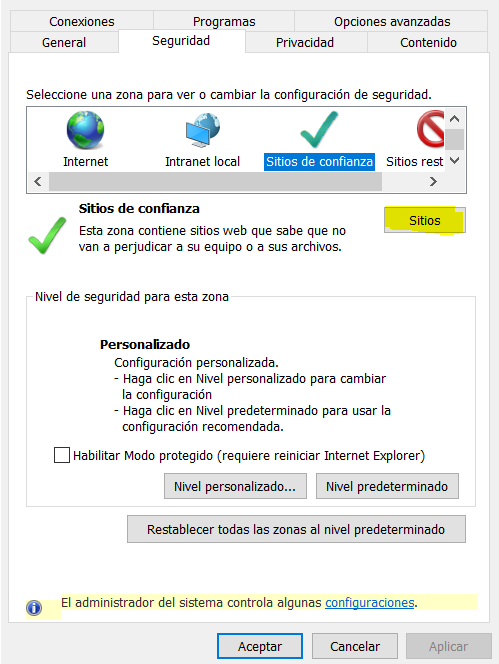
< / P >< P > < SPAN style = "display:inline!important ;float:none;background-colortransparent;color#3d3d3d;font-familyHelvetica Neue,Helvetica,Arial,Lucida Grande,sans-serif;font-size15px;font-stylenormal;font-variantnormal;font-weight400letter-spacingnormalorphans2text-alignlefttext-decorationnonetext-indent00text-transformnone-webkit-text-stroke-width00whitespace normal word-spacing00word-wrap break-word">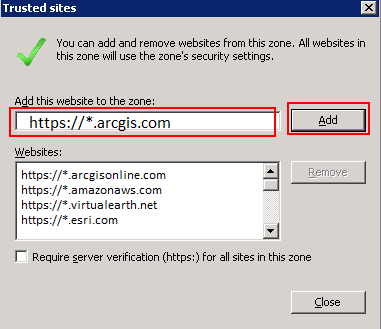
< P > < / P > < P > < SPAN style = "color:#ff0000">
IMPORTANT:< / STRONG> < SPANstyle=float:none;background-colortransparent,font-family'Helvetica Neue',Helvetica,Arial,'Lucida Grande',sans-serif,font-size15px,font-stylenormal,font-variantnormal,font-weight400letter-spacingnormalorphans2text-alignlefttext-decorationnonetext-indent00text-transformnone-webkit-text-stroke-width00whitespace normal word-spacing00overflow-wrap break-word display:inline!important">Uncheck the box "Require server verification (https;) < / STRONG>< P > < / P > < P > *Once finished you must close Internet Explorer and run the program again to perform step two.< / P > < P > < / P > < P >3 - < SPANstyle=display:inline!important ;float:none;background-colortransparent;color#3d3d3d;font-familyHelvetica Neue,Helvetica,Arial,Lucida Grande,sans-serif,font-size15px,font-stylenormal,font-variantnormal,font-weight400letter-spacingnormalorphans2text-alignlefttext-decorationnonetext-indent00text-transformnone-webkit-text-stroke-width00whitespace normal word-spacing00word-wrap break-word">In Internet Explorer navigate to the URL:< A href=\"https:\/\/.arcgis.com\"> rel="nofollow noopener noreferrer">https://www.arcgis.com and log in to the site with Google credentials. If there are no issues logging in, go to ArcGIS Pro and open the program.<\/SPAN><\/P><\/P>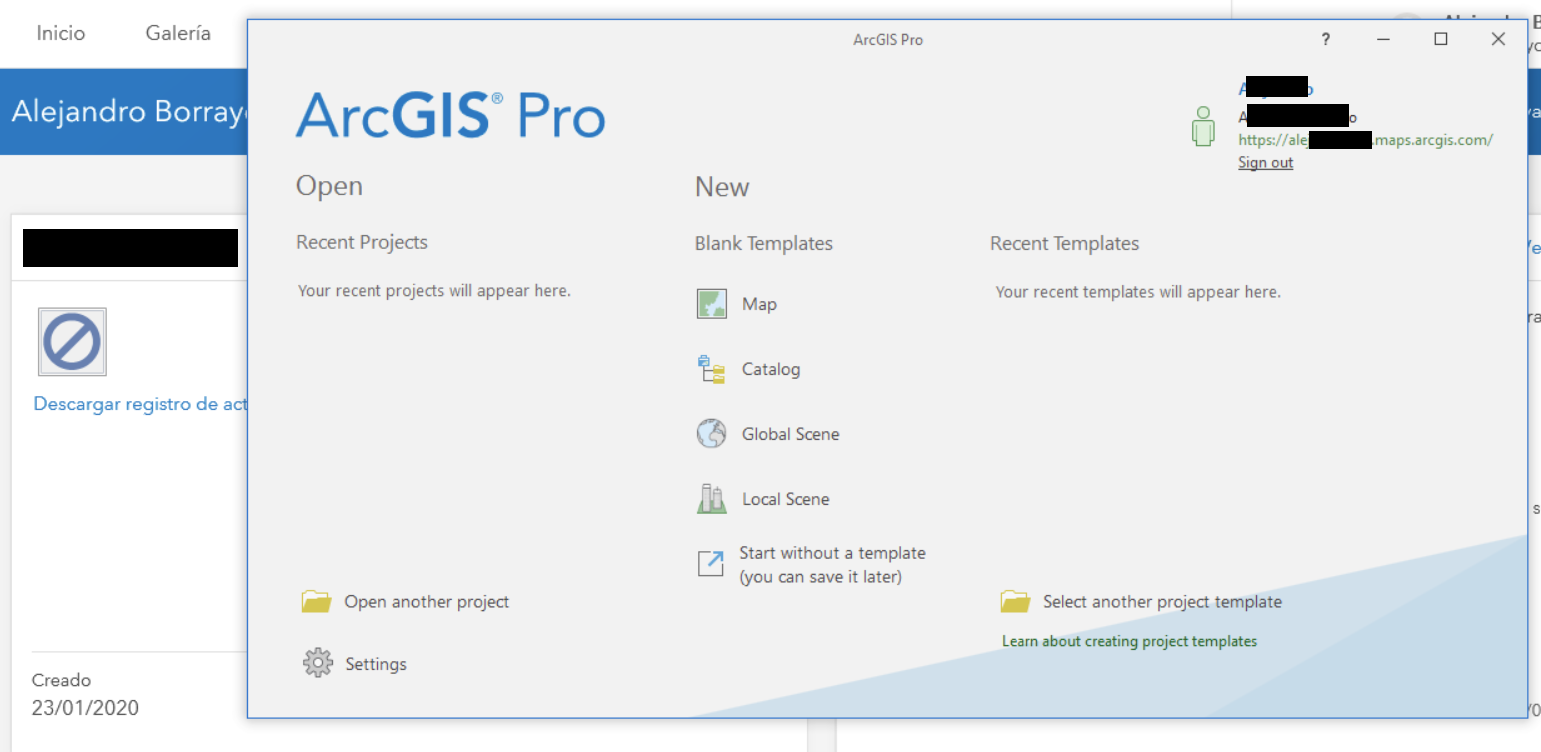 <\/SPAN><\/P><\/BODY><\/HTML>