A few people have noted that when using ArcGIS Explorer Desktop on a touch display or surface, pinching to zoom does not zoom in or out very far or very quickly. This is related to the ArGIS Explorer Options - Navigation Speed.
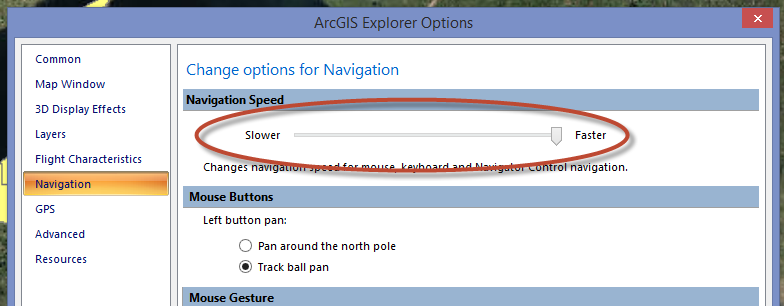
At its fastest setting, the pinch navigation still does not perform that well.
There is a work-around for this. This setting, like many of the ArcGIS Explorer options is stored in the 'settings1500.xml' file. This file is located in your user profile. In the Windows file browser type %appdata%\Roaming\esri\arcgis explorer
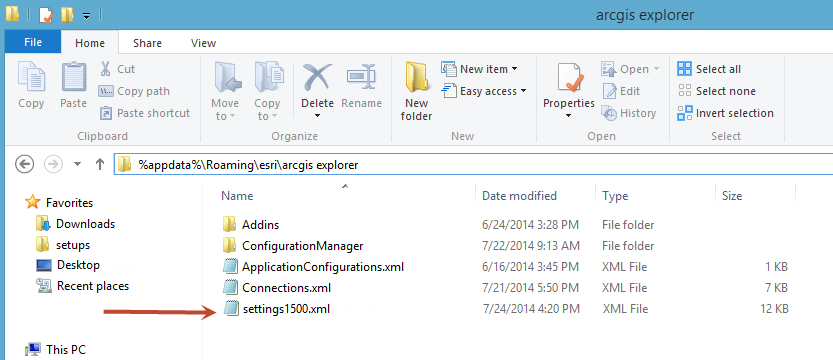
Open the settings1500.xml file in a text editor, and look for:
MouseNavigationSpeed="0.019"
Increase the value of this number. In testing I tried 0.119. and found that it worked well for my touch screen. Update the file, save it and then start ArcGIS Explorer. I also noticed that the Mouse scroll wheel was not usable, way to fast with the updated speed. However, If I held the control-key down while scrolling the mouse wheel (fine zoom) it worked well. You can also hold the shift key down and drag a box with the left mouse button to zoom, if you are going between touch and mouse in your usage.
Keep in mind that if you make a change to an ArcGIS Explorer option in ArcGIS Explorer and click OK on the ArcGIS Explorer options dialog, it will overwrite the MouseNavigationSpeed setting in the XML file, and you will have to update the file again to get pinch zoom working as desired.
Mark



