Fabric’s Data Factory provides an environment to facilitate data ingestion, preparation, and transformation workflows using a graphical interface to guide the process. These workflows can be run manually or scheduled as part of the pipeline. In this post, we’ll explore the Data pipelines that can be created within Data Factory and how you can incorporate spatial analytics using Arc GIS GeoAnalytics for Microsoft Fabric.
Some of the great things you can do with a GeoAnalytics for Fabric notebook in Fabric’s Data Factory using Data pipelines include:
- Automating data migration between Esri and Fabric data stores
- Transforming geometries to adjust coordinate systems or geometry type
- Enabling spatial enrichment to add sociodemographic details to datasets based on location
- Aggregating point datasets into square or hexagonal bins for use in Power BI
- …and many more using the more than 180 spatial functions and tools in the GeoAnalytics library
What is GeoAnalytics for Fabric?
GeoAnalytics for Fabric brings more than 180 spatial functions and tools into Fabric to allow you to seamlessly weave location intelligence into your analytics workflow. It is directly integrated in the Fabric data science and engineering runtime to allow you to use spatial analytics in your notebooks to generate powerful insights driving your decision making.
Using GeoAnalytics for Fabric, you can access geospatial data from your lakehouse, data warehouse, or via web services such as Esri’s ArcGIS Online. Most common geospatial formats will be recognized, including shapefiles, geodatabases, GeoParquet, GeoJSON, and Esri feature services – including the diverse resources in the Esri ArcGIS Living Atlas of the World.
How can you use GeoAnalytics for Fabric in Data Factory?
Fabric’s Data Factory allows creation of data pipelines to build complex ETL workflows. It includes a number of pre-defined activities, for instance to copy data from cloud warehouses into OneLake. It also includes the ability to bring in Spark notebooks as part of the workflow – and this is how we can leverage GeoAnalytics for Fabric!
In this post we’ll provide examples of GeoAnalytics notebooks in a data pipeline, but you can find more details on notebook activities in general in the Fabric Data Factory documentation.
What makes a good GeoAnalytics for Fabric notebook in a data pipeline?
GeoAnalytics for Fabric has a large set of capabilities for creating complex workflows. However, for using them in data pipelines I find that it generally works best to create simple notebooks to perform one or two related tasks. For instance, a notebook that just performs a spatial join to enrich data, or performs the spatial join and aggregates, with the results written back to OneLake.
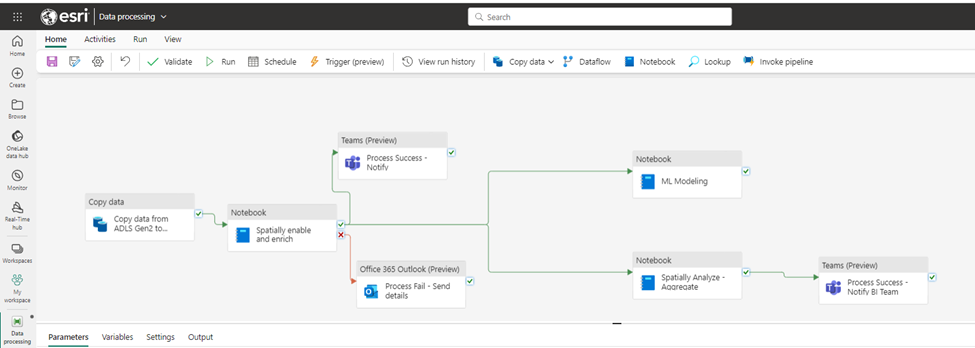
What makes a good notebook for use in a data pipeline
As noted above, a good notebook for use in a data pipeline is designed to perform a specific task. That may include multiple steps in the analysis workflow, but would typically result in a single output. Some examples might be:
- Data migration. Moving spatial datasets between Esri feature services and OneLake; or from OneLake to Esri feature services.
- Data enrichment. Using spatial joins to combine multiple data sources to geospatially enrich a data set for subsequent use in spatial analysis or an ML model. For instance, reading in customer data and enriching each customer location with sociodemographic details based on their location.
- Data aggregation. Simplification of a large dataset into an aggregated version for use in business intelligence, reporting, or for downstream analysis on the aggregated data. For instance, aggregating a large point dataset into hexagonal bins.
For our example, we’ll use a notebook that performs a spatial join to find intersections between oil and gas pipelines and critical infrastructure or environments of interest. The results will then be aggregated and written out to use in a Power BI dashboard. In creating the notebook, we’ll add in some functionality to make it useful to the Fabric users in our organization beyond the individuals that work directly in Fabric notebooks. The idea is to, essentially, create a nice “tool” for geoprocessing that can be run by anyone – even if they don’t work with notebooks or know how to make the analysis workflow themselves.
One of the keys to doing this is to incorporate parameters in the notebook. Parameters can be used to pass external values into a data pipeline. This means that a user with access to the data pipeline can edit these parameters and have them impact the results that are generated by the notebook when that code runs. Let’s take a look…
Using parameters to allow quick analysis modifications
To use parameters when running a notebook in a Data pipeline, the first thing is to set up specific variables in your notebook as “parameters.” Then you just need to access them in the Data pipeline and update their values.
Within a notebook. Inside the Fabric notebook, you need a cell that defines the parameters for the notebook. This looks like any other cell, but has been flagged as a “parameter cell.” In the examples below, we have a set of parameters that can be used to identify what analyses will be performed (i.e., identify pipeline intersections with roads, critical habitats, or competitor pipelines), what resolution the aggregated results will be returned in, and where the output result file will be saved.
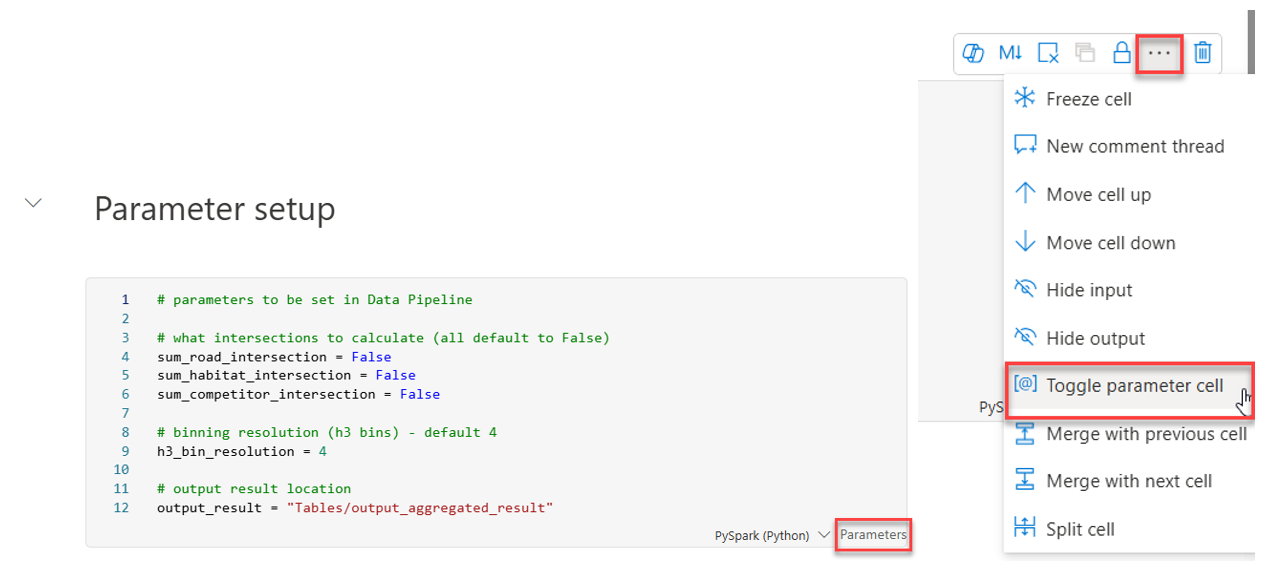
Each of these parameters has a default value set, so if no updates are made in the Data pipeline, the notebook will still run and will rely on these default values. But, if a user updates them in the Data pipeline, the notebook will update the flow through the analysis.
Within the Data pipeline. Let’s look at how these appear within the Data pipeline for a user to update their values. Within the Data pipeline, once a notebook has been added to the canvas as part of a workflow, it can be selected to update its settings. Under “Settings” for the notebook new values can be entered to update the parameters.
In the example below, we’re setting the notebook so that when it runs it will calculate the pipeline intersections with roads and the intersections with competitor pipelines, but not the intersections with critical habitats. It uses h3 bins of resolution 4, a “near distance” (for identifying roads or competitor pipelines that are within this distance of interest) of 100 meters, and will return the aggregated output to a file called “output_aggregated_results.”
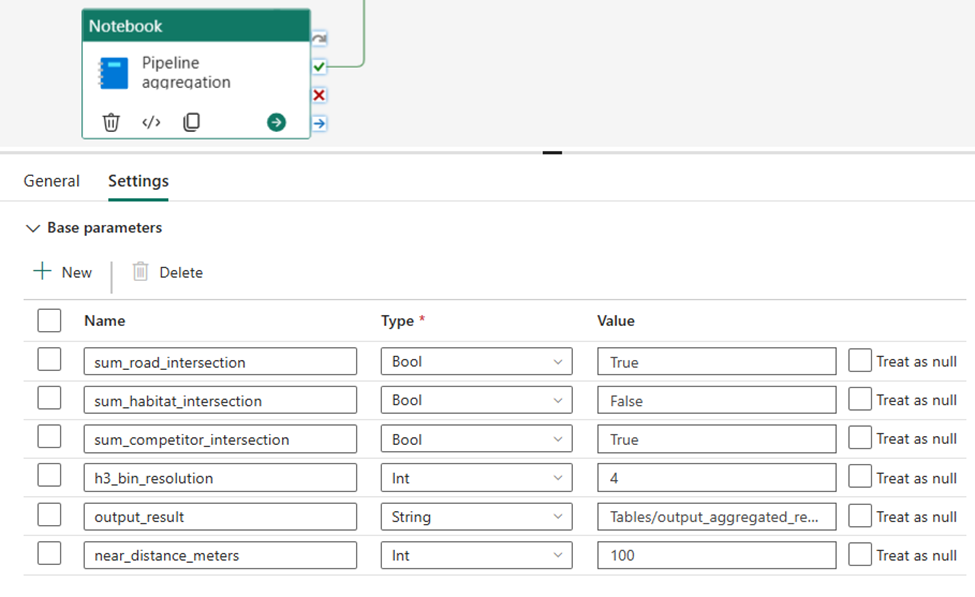
Now that the settings are updated, when the pipeline is run, it will swap these values into the notebook to replace the default values. Anywhere these values are used in the notebook will reflect the new values and run accordingly. From the Data pipeline all the user needs to know is what the parameters are that they can edit.
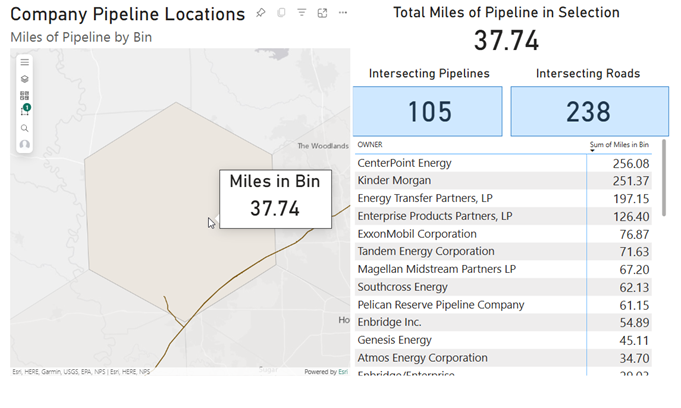
In this example, when the notebook is run as part of the Data pipeline, it returns results into OneLake that we can use in a Power BI dashboard to analyze our oil and gas pipelines relative to nearby infrastructure.
Conclusion
This is just one of the great ways that you can use GeoAnalytics for Fabric to drive your geospatial workflows in Microsoft Fabric. We will be posting more content here on the GeoAnalytics for Fabric community site to help you get the most out of the geospatial capabilities that are part of Esri and Microsoft’s partnership in Fabric. Please let us know what type of things you’d like to learn more about!
