ArcGIS GeoAnalytics for Microsoft Fabric is licensed on a monthly (30 day) basis, with a defined number of core-hours provided with the subscription. In this post we’ll explore the concept of core-hours associated with the GeoAnalytics for Fabric subscription, learn about the functions for tracking core-hours usage, and examine how many core-hours are used for a few example tasks. Core-hours are the unit that is used in GeoAnalytics for Fabric to track the resources used in processing and analyzing your spatial data.
As you process your data with the functions and tools in the GeoAnalytics for Fabric library, the usage is tracked and debited from the core-hours included with the subscription.
An important note about core-hour usage is that this is different than the Capacity Units that you are consuming within Microsoft Fabric. You are NOT using core-hours for the entire duration that your computing environment is running. You only use core-hours when a GeoAnalytics for Fabric function, tool, or data source is actively being used. In other words, while your entire computing process might take 1 hour, your GeoAnalytics for Fabric processes are likely only a portion of that, so your core-hours of usage are only being tracked for a subset of the time that the Fabric environment is running.
About usage collecting and reporting
Within Fabric, any Spark job that includes GeoAnalytics for Fabric functionality will be measured in compute unit-milliseconds and reported back to Esri to deduct from the available core-hours remaining in the subscription.
As an example of how this works, if you run a Spark job using a GeoAnalytics for Fabric function, tool, or data source on a cluster with 60 cores for 1 minute (60,000 milliseconds), the total usage reported would be 60 cores times 60,000 milliseconds for a total of 3,600,000 compute unit-milliseconds or 1.00 core-hours. This value is reported to Esri and is deducted from the available core-hours in your subscription.
There are two easy ways to track your usage. First, you can use the GeoAnalytics for Fabric dashboard associated with your account to view the overall usage and graphically explore your past usage. Note that this dashboard isn’t updated immediately as the data is collected and there may be a short lag between completing a process and the dashboard being updated.
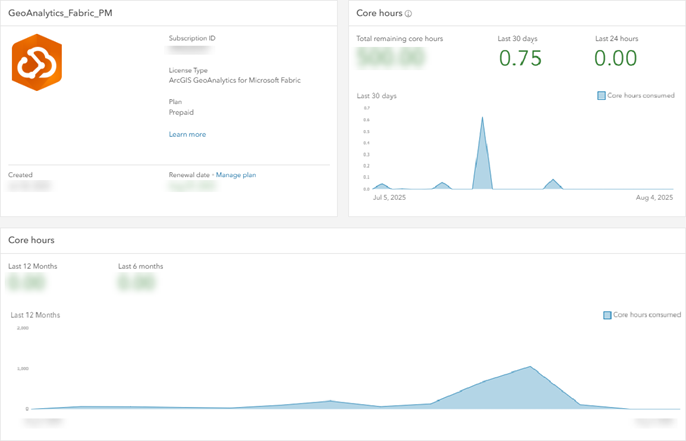
Another way to track usage is directly in the notebook. After you have authenticated your license, you can use the geoanalytics_fabric.auth_info() or geoanalytics_fabric.usage() functions to explore the current usage status. They both provide slightly different sets of information.
auth_info() lists the authorization information for the authorized user. That includes user name, session time, total core-hours available, and the current session usage. Session usage time is reported in core-milliseconds.
geoanalytics_fabric.auth_info().show() will return a list like this:
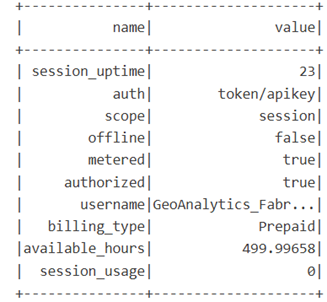
usage() returns just the usage information for the authorized user. The information returned can be tailored to provide details about usage for a specific time span of interest using the span and period parameters. Usage time is reported in core-milliseconds.
Using these two functions you can explore your usage as you go through a notebook – for instance, to understand how many core-hours are used for a specific operation on your data, how many core-hours are used throughout an entire notebook of calculations, or to understand the overall usage on your account.
Core-hour tracking in action
Let’s dig in and track some calculations to see how many core-hours are used – and we’ll see just how efficient GeoAnalytics for Fabric can be! For the examples, I’ll use results from some analyses using GeoAnalytics for Fabric in an F64 capacity using a Medium compute environment (1-10 nodes) with Runtime 1.3 (Spark 3.5, Delta 3.2).
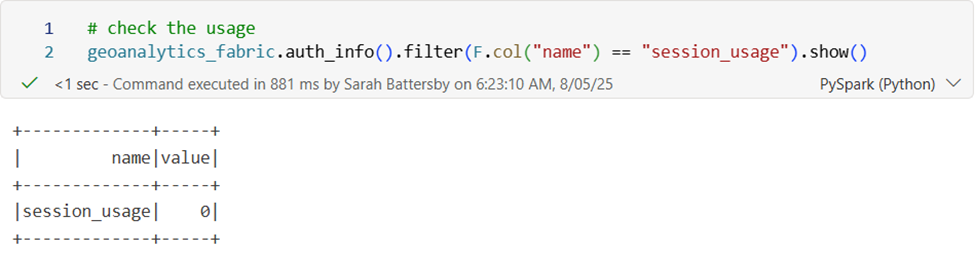
Before I run any operations, I can check the number of core-milliseconds used (reporting via auth_info() or usage() is always in core-milliseconds, even though the overall unit for GeoAnalytics for Fabric is in core-hours).
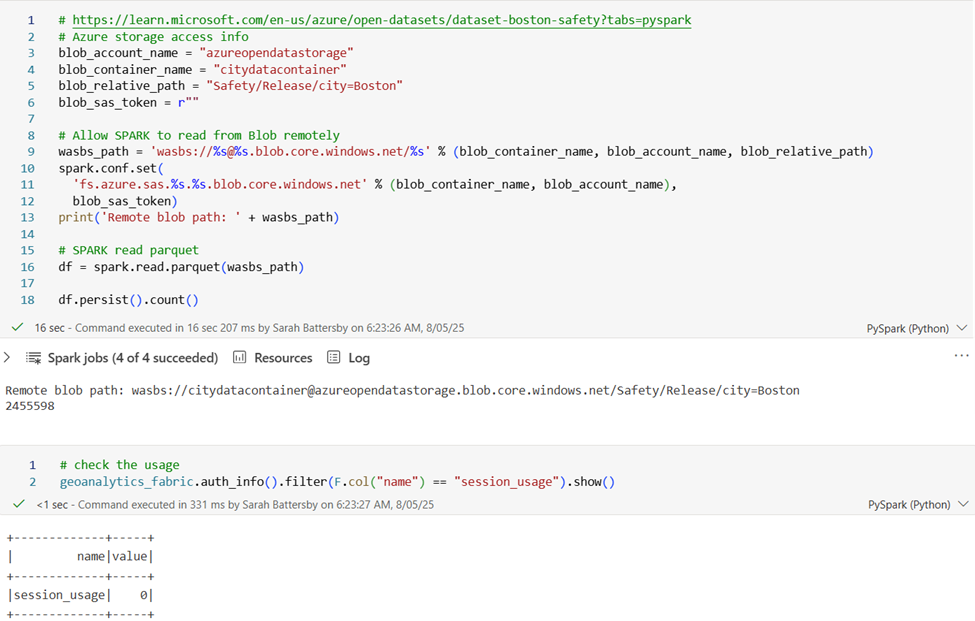
As I complete operations, I can look again to see how many core-hours have been used. In this case, I started at 0. After I read in a parquet file from the Azure open datasets (city of Boston 311 public service calls), the usage is still 0 – because reading parquet files is a Spark function, not a GeoAnalytics for Fabric-specific function.
After using the ST_Point function from GeoAnalytics for Fabric to create a point geometry from the latitude and longitude fields in the parquet, the usage is now 4229 core-milliseconds. That translates to ~0.0011 core-hour. Not very much.
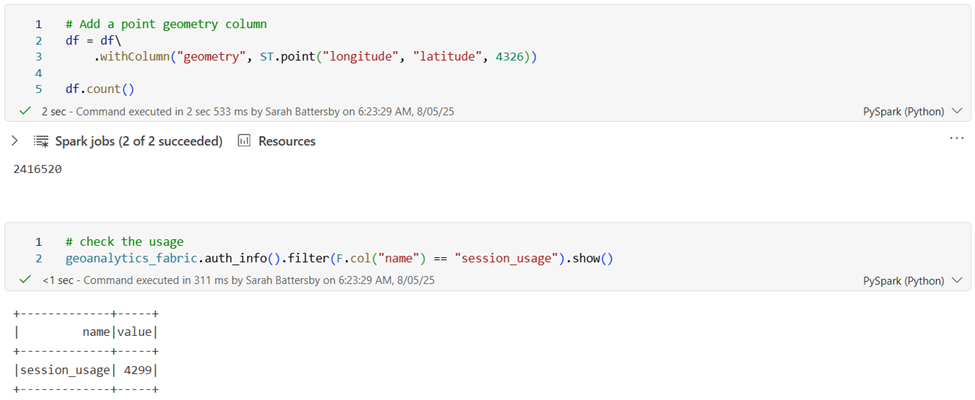
On the other hand, if I read in an Esri feature service, we would expect that the session usage to increase since reading feature services is a GeoAnalytics for Fabric-specific functionality. Let’s see what happens:
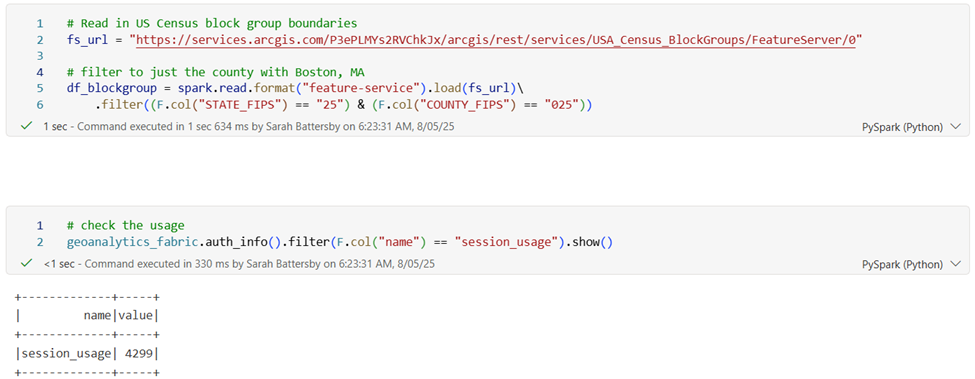
After reading the feature service the session usage is still 4299! This is an important thing to note – Spark uses lazy evaluation, so when we “read” that feature service, we didn’t actually “read” it. What??
Lazy evaluation is a fundamental concept in Spark – it defers calculations until specific actions (e.g., count, collect, show, etc.) take place, rather than running them immediately. This allows for creation of more efficient execution plans since all of the transformations that need to happen can be collected up to create an optimized execution plan for when the action is triggered.
This is an important note if you want to explore your core-hour usage before and after running operations. If you don’t have an action then no core-hours are used since nothing has actually run. Let’s see what happens if we add in an action – in this case we’ll persist the data (save it in memory) and then get a count of the number of records. This count action triggers the actual read of the feature service and then persists it in memory, which will make it much faster for subsequent actions.
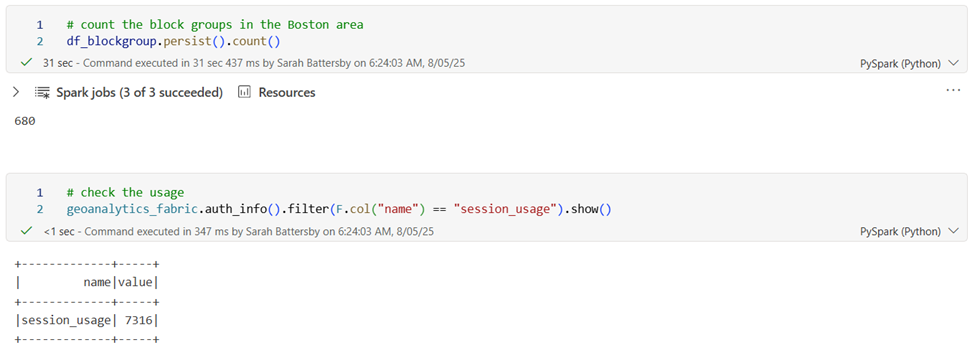
After really reading in the feature service and persisting the data to memory, we’ve used some more core-hours. We’re up at 7316 core-milliseconds, or ~0.002 core-hours.
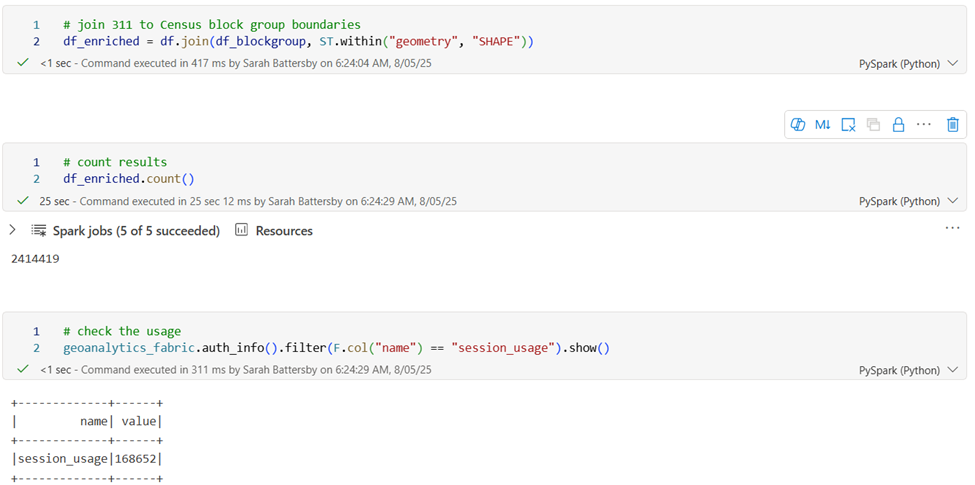
Let’s add in a bigger spatial process to explore core-hour usage. For this, we’ll perform a spatial join with the ~2.5 million point records from the 311 service calls and the 680 tracts we just read in from a feature service.
After running a spatial join using ST_Within, our total core-millisecond usage for the entire workflow is at 168,652, or 0.04 core-hours.
Conclusion
In this blog post we looked at the concept of core-hours in GeoAnalytics for Fabric and examined how many core-hours were used for some basic processes like reading data and performing spatial joins. We also looked at the functionality in GeoAnalytics for Fabric to track how many core hours are consumed in various processes so that you can better understand and analyze your usage.
Hopefully, this post has been helpful in understanding how core-hours are tracked in GeoAnalytics for Fabric and how you can use them to keep tabs on your product usage. We’d love to hear how this technique is useful in analyzing your analytic workflows. If you have questions about this or any other GeoAnalytics for Fabric tools, SQL functions, or Track functions, please feel free to provide feedback or ask questions in the comments section below.
