In this blog post, we walk through the details of setting up a new ArcGIS GeoAnalytics Engine account. For this discussion, we are assuming that you are currently setting up an evaluation or newly purchased license and have received an email prompting you to set up your account for use.
When your account is created, your Account Manager will have included an email address for an individual in your organization that will be managing the account. Communications regarding the account set up will be sent to that email. If you did not receive the email, please check with your Account Manager to ensure that the correct email address was specified.
The setup process will differ for GeoAnalytics Engine Connected and Disconnected subscription types. We will walk through examples with both.
Disconnected Subscription
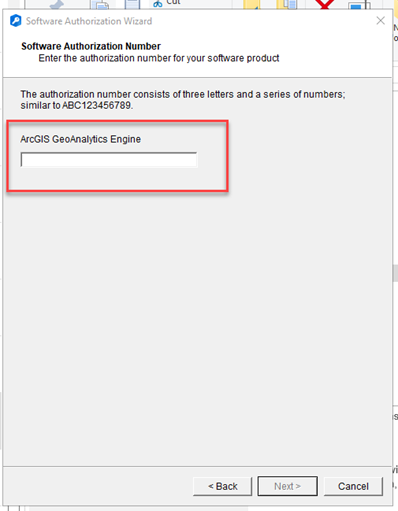
After your evaluation or purchase is finalized, you will receive a setup email including the license information for your account. It will include a string starting with “ECP” that you will use for generating a license file (e.g., “ECP1234567890”).
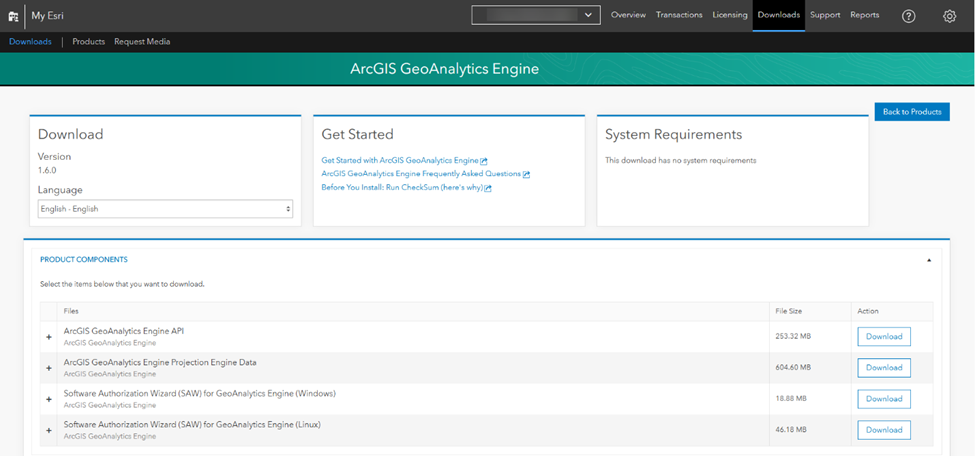
You can download the files for GeoAnalytics Engine from the My Esri account associated with your GeoAnalytics Engine subscription. The Esri account associated with your subscription will be listed in the email that you receive.
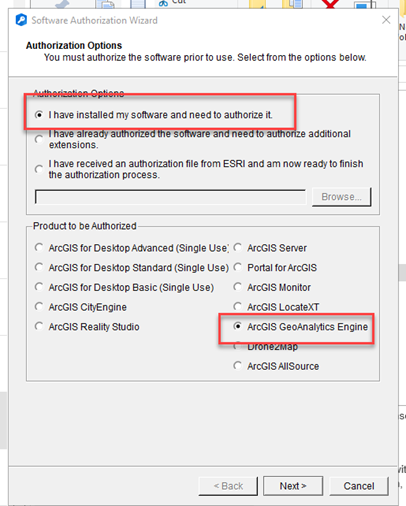
You will need to generate a license file using the Esri Software Authorization Wizard; the ECP license string will be used as input. This license file will be used for authentication with GeoAnalytics Engine Disconnected.
You can access the Software Authorization Wizard from the My Esri portal where you find your GeoAnalytics Engine files.
For generating the license file, you will just go through the prompts using the Software Authorization Wizard.
Connected Subscription
After your evaluation or purchase is finalized, you will receive a setup email that includes a URL to activate the subscription. You will need to set up user credentials prior to being able to access and use GeoAnalytics Engine. By clicking on that link, you will enter the setup process where you will:
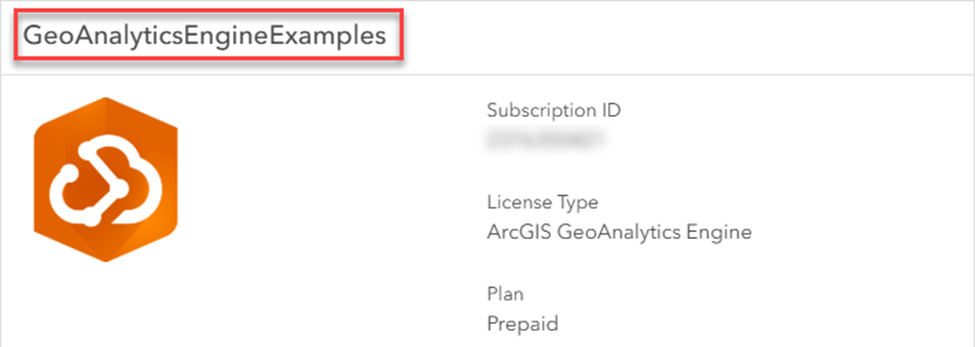
- Provide an Organization Name. This is the name that will appear on your GeoAnalytics Engine dashboard. As an example, the organization shown below is named “GeoAnalyticsEngineExamples”
- Provide account details and accept the master agreement and privacy policy terms. This is where you can set the name and email for the administrator of your account.
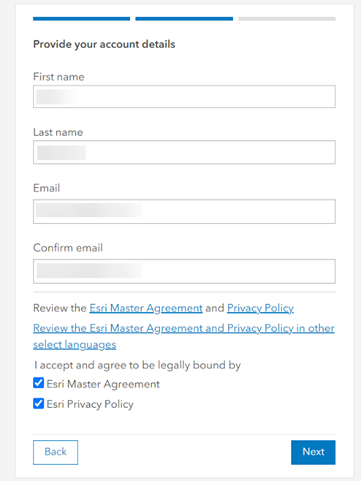
Account name. At this point in time, the name associated with the account cannot easily be updated, so we recommend selecting a generic name, e.g. “MyOrg GeoAnalytics Admin.”
Account email. When your GeoAnalytics Engine account is set up, it is tied to a single email address for the administrator. You cannot change this via the GeoAnalytics Engine dashboard user interface.
To future-proof, we recommend using an email alias internal to your organization (e.g., geoanalytics_admin@yourOrganization.com) instead of a single user’s personal email address. By doing this, the alias can be managed and re-directed internally by your organization if the GeoAnalytics Engine administrator departs, changes roles and is no longer administering your GeoAnalytics Engine license, or you no longer have access to the emails sent to their individual user email.
- Set up your account user name. The GeoAnalytics Engine user name is not the same as your ArcGIS Online user name. It is a separate user and separate account type.
A single GeoAnalytics Engine Connected subscription will have one user name associated with it. There is no user name for a GeoAnalytics Engine Disconnected subscription (authentication is via a license file, not user name-based credentials)
User names are unique and they cannot be changed. We recommend selecting a user name that is distinct to your organization but not to the person administering the account. For example, sbattersby_geo would not be recommended as it references a specific individual “sbattersby,” while “geoanalytics_myOrgName” might be a better choice to indicate that this user name is specific to the GeoAnalytics Engine product.
Once you have created your account credentials (Connected subscription) or license file (Disconnected subscription) you are ready to authenticate and work with GeoAnalytics Engine. For work with a Connected subscription, we recommend generating API keys for authentication instead of using the account administrative credential directly for authentication. More details on setting up and working with the API keys can be found in the GeoAnalytics Engine Community Blog.
Please refer to the product documentation for information on setting up GeoAnalytics Engine in your specific Spark environment. You should also review the methods for authorization using your credential, API keys created within your Connected subscription account, or your GeoAnalytics Engine Disconnected license file.
Conclusion
We hope that this was helpful to have a detailed walkthrough of the setup process! We look forward to hearing how you’re using GeoAnalytics Engine to elevate your big data workflows.