- Home
- :
- All Communities
- :
- User Groups
- :
- Enterprise Spatial Analytics
- :
- Blog
- :
- Esri and Snowflake Series: Protecting Lives & Infr...
Esri and Snowflake Series: Protecting Lives & Infrastructure from Wildfires using Telco Data - Part 2


- Subscribe to RSS Feed
- Mark as New
- Mark as Read
- Bookmark
- Printer Friendly Page
Before you begin:
This is the part 2 of the Esri and Snowflake Series: Protecting Lives & Infrastructure from Wildfires using Telco Data series. If you have not complete part 1, please click here.
To start with part 2 of this series:
- Download and install the deep learning libraries using this link.
- Download the ArcGIS Pro project package used in this workflow from this link: ArcGIS Pro Project Package, and open it in ArcGIS Pro to follow along.
We are now ready for our GeoAI analysis. From the Contents pane in ArcGIS Pro, turn off the two query layers and zoom into the AOI (Area of Interest) layer.

We want to identify the cell towers and customers historically exposed to California wildfires. To do this, we'll generate fire perimeters from Sentinel-2 imagery using a deep learning model provided by the ArcGIS Living Atlas.
Step 1: Connect to a STAC (SpatioTemporal Asset Catalog)
The STAC standard lets you access spatial datasets like imagery or video in a consistent format across platforms.
- In the Catalog pane, click the Project tab.
- Right-click an empty space and go to New > STAC Connection.
- In the dialog box, name the connection and choose Microsoft Planetary Computer.


- Add your Cloud Storage Connection Files (You can download them from this link).
- Unzipp the downloaded folder
- Click the plus (+) sign and select all files in the unzipped folder.
Now, right-click on your STAC connection and select Explore STAC.


Step 2: Search and Load Imagery
- Select the Sentinel-2 sensor.
- Choose bands: 2, 3, 4, 11, 12, 8A.

- Set the date range: January 7–13, 2025.
- Set the extent by selecting the AOI layer.
- Filter with Cloud Cover < 30%.

From the results, find and add this image:
S2A_OPER_MSI_L2A_TL_2APS_20250112T222951_A049931_T11SLT_N05.11

Each band will appear as an individual raster layer.
Step 3: Prepare Data for Deep Learning
- Go to the Imagery tab > Raster Functions > Composite Bands.

- Combine the required bands in this order: B02, B03, B04, B8A, B11, B12.
- Choose Create New Layer.

Then, right-click the new layer and Export Raster to save the input image needed for the deep learning model. (Pre-exported files are included in the Pro package.)

Step 4: Download the Deep Learning Model
In the Catalog > Portal > Living Atlas:
- Search for "burn scars".

- Download Prithvi – Burn Scars Segmentation. (Also included in ArcGIS Pro files.)

This model is part of ArcGIS's suite of ready-to-use AI models, supporting scalable analysis on imagery.
Step 5: Run Deep Learning
- Open the Analysis tab > Tools > Classify Pixels Using Deep Learning.

- Set:
- Input raster: your Sentinel composite
- Model: Prithvi model from your local files
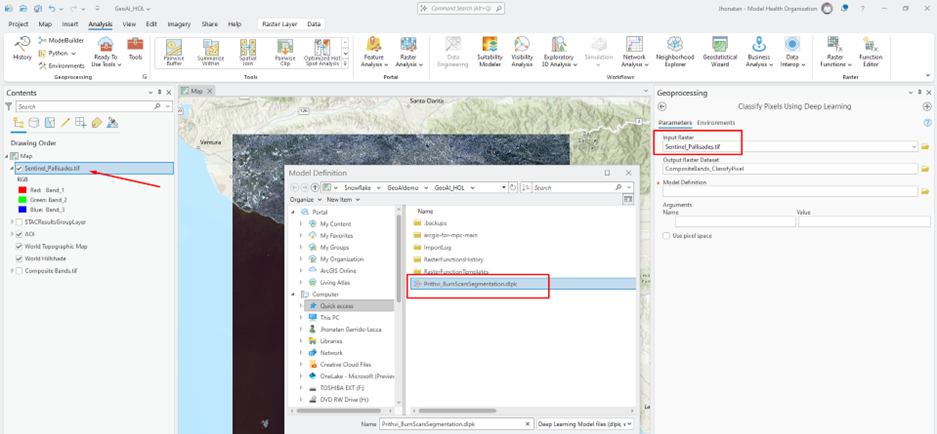
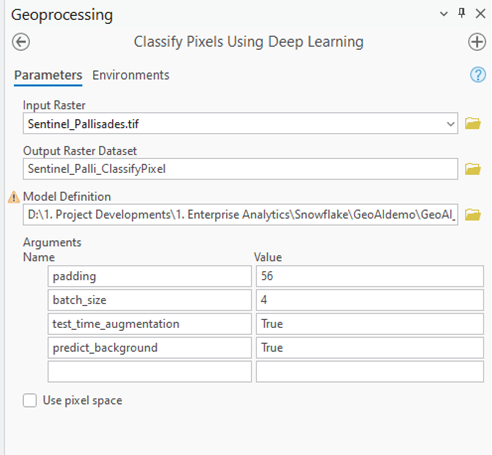
- In Environments:
- Processing extent: AOI layer
- Processor type: GPU (ID = 0)

Click Run. Processing time varies from 2–10 minutes.
Step 6: Convert to Polygon
To make the results usable in spatial analysis:
- Open Raster to Polygon from Geoprocessing tools.
- Input the output raster.
- Set Field = value, name the layer, and run the tool.

You now have a polygon layer representing detected fire perimeters. This can be compared and intersected with official fire boundary data, such as the California Historical Fire Perimeters Layer from the Living Atlas.
- Click on Catalog > Living Atlas and type California Historical Fire Perimeters.
- Add the layer to your map.
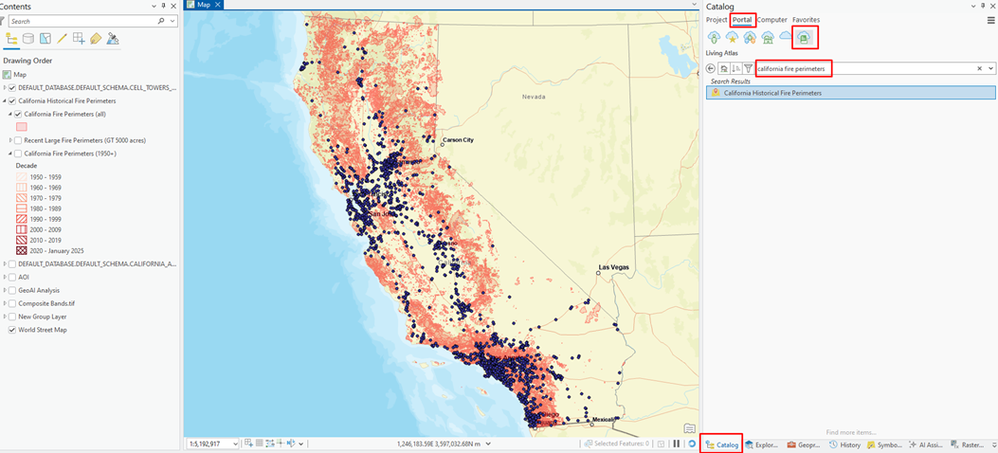
As you'll see, the Palisades and Eaton fire perimeters are already present. You can zoom to the AOI and click on polygons to inspect them.

Step 7: Intersect with Snowflake Cell Tower Data
Now that we have the wildfire boundaries, let's identify which cell towers were within the affected zones.
- In the Geoprocessing pane, search for Pairwise Intersect.

- Input layers:
- CELL_TOWERS_EDITABLE
- California Fire Perimeters (All)

- Under Parameters, set Parallel Processing Factor = 80%.
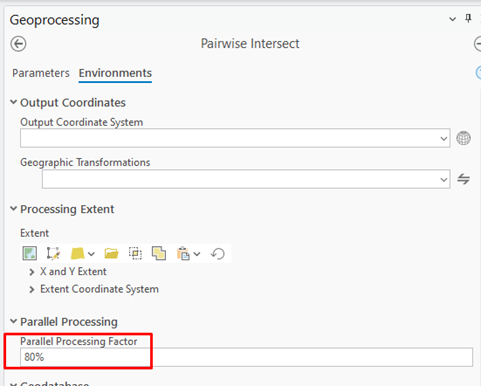
Click Run to execute.
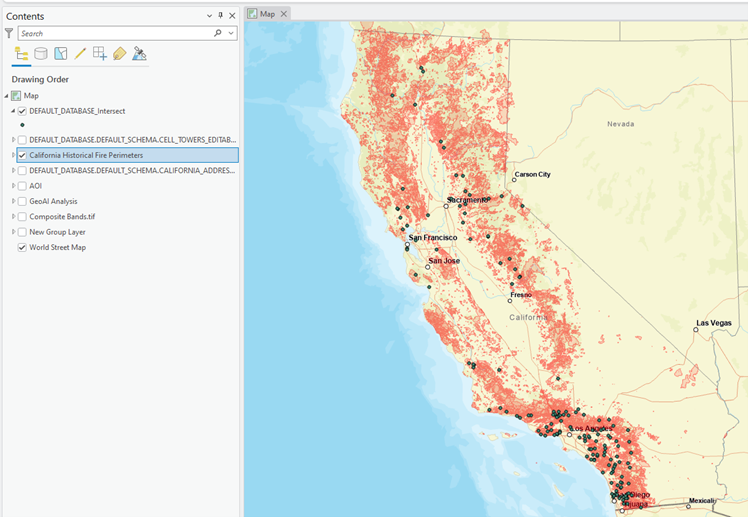
To ensure clean results:
- Use Delete Identical tool.
- Input the intersect output layer.
- Use Shape as the field.

Click Run.
Congratulations, you have finished this part of the tutorial!
In the next blog post, we'll continue the workflow by intersecting these generated fire polygons with customer and infrastructure data from Snowflake, using spatial SQL in ArcGIS and updating records with ArcGIS Data Interoperability.
Stay tuned for Intersecting Telco Infrastructure with Fire Perimeters and Updating Snowflake Tables Using Data Interoperability - Part 3
You must be a registered user to add a comment. If you've already registered, sign in. Otherwise, register and sign in.
