Utility organizations rely heavily on field operations to maintain and expand modern utility infrastructure while safely providing services to their customers. Coordinating field workers, equipment, and other resources across vast service areas requires timely access to accurate information about current field assets and conditions. Many utility organizations struggle to capture, update, and maintain accurate utility asset data as there is a high ratio between the number of field workers that are utilizing the asset data and GIS analysts who are managing the data and supporting the field workers. While training processes may be in place to enforce a step of procedures there are still gaps that lead to inconsistent data entry and inaccurate location capturing.
Don’t fret about the quality of your data just yet, there are options to help mitigate some of these inconsistencies and improve a mobile field worker’s experience while simplifying the deployment and maintenance of GIS maps and apps. This blog is a how-to demonstration on methods utility organizations can use to streamline a field worker’s experience. We will utilizing GPS metadata fields to maintain a record of what technology and accuracy was utilized to capture the location information. Be able to locate accuracy settings that can be configured in ArcGIS Field Maps Designer to determine accuracy requirements while collecting data related to a specific map. Lastly, we will review the benefits of deploying a mobile device management software for ArcGIS Field Maps device specific settings and how this software relates to an organization’s security.
The first steps I can recommend is to outline your project’s requirements and the environment you will be operating in. We must know where we currently are and where we want to be before we can start setting standards for our data quality. This can include requirements such as
- Level of Accuracy
- Ability to digitize locations
- Cellular connectivity availability
- Number of workers needing access
The level of accuracy your data can achieve is based on the GNSS receiver and differential correction source being utilized. I’m going to use the term GNSS receiver instead of GPS receiver as most receivers these days support multiple constellations and not only the GPS constellation. GNSS receivers are categorized by accuracies levels:
- Centimeter(1-3cm)
- Decimeter (10 centimeters or less)
- Subfoot (30cm or less)
- Submeter (less than one meter)
- Autonomous or consumer grade (2 meters or greater)
A differential correction source will need to be utilized for the GNSS receiver to achieve accuracies that are submeter or less. There are many varieties of differential corrections such as SBAS, reference stations, RTK networks, and satellite services. Some of them will require an internet or cellular connection from the mobile device your GNSS receiver is connected to utilize the source. The level of desired accuracy and cellular availability will determine which GNSS receiver and correction source will be most beneficial for your project requirements, be sure to explore your options when choosing a GNSS receiver.
An efficient way to maintain a record of the accuracy a location was taken at is to add GPS metadata fields to your feature layers. GPS metadata fields are specific data fields that can be added to point, line, and polygon layers to automatically capture attribute information about the location and GNSS receiver being used when the feature was captured or updated. Knowing with what technology and what accuracy the data was captured at can assist in managing the data for the future.
Note – The type of GNSS receiver that you’re utilizing does determine which of these metadata fields are populated. The NMEA sentences, data lines output by the GPS receiver, must match those specified in the ArcGIS Field Maps app to be utilized.
Before adding GPS metadata fields to your data, you will want to ensure that the feature classes being used to capture data are Z enabled. This ensures that the elevation data will be captured. If you’re interested in using your data for navigation or routing, make sure that the data layers are M enabled as well. Both settings can be enabled during the creation of feature classes in the web or through the ArcGIS Pro geoprocessing tool.
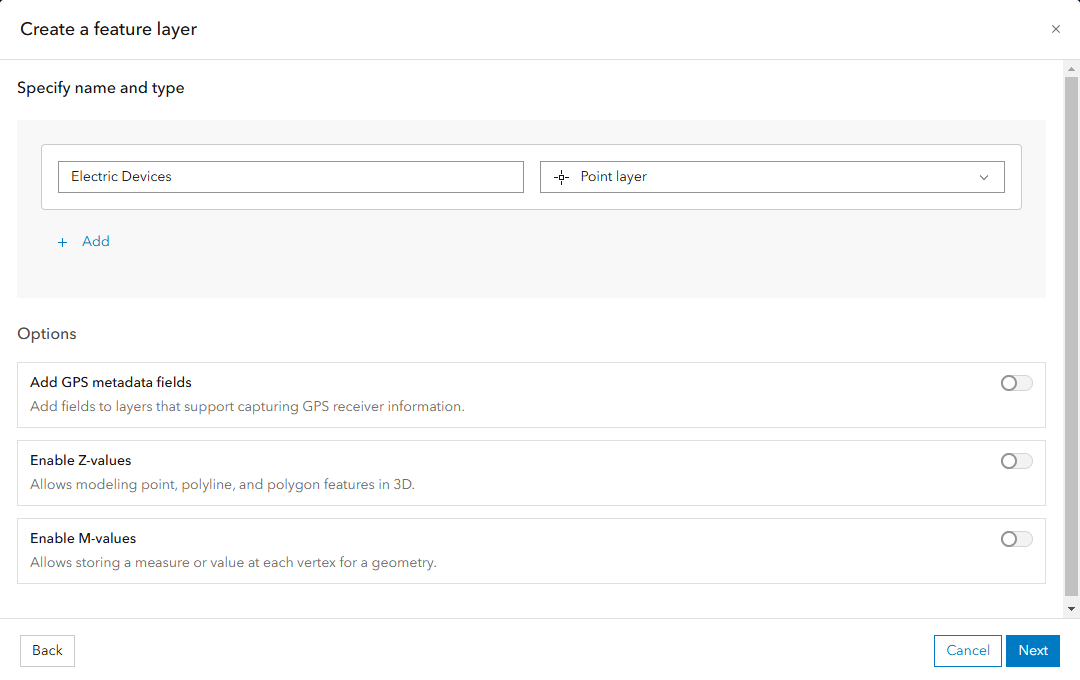
Now that we’re confident that the feature classes are ready to capture elevation data, we can move to the next step which is adding GPS metadata fields. The most efficient way to add these fields to your feature classes is to use the Add GPS Metadata Fields tool in ArcGIS Pro. The field can be manually added to a feature class if you only want one or two of these attributes but be cautious to name the fields correctly else they won’t be recognized as a GNSS metadata field and data won’t populate.
Another step to enforce the capturing of accurate locations is to determine the collection settings within the ArcGIS Field Maps Designer. These settings will be deployed for each map and will override the collection setting set in the ArcGIS Field Maps app. All field workers utilizing the same map will have to adhere to the same collection settings configured in the ArcGIS Field Maps Designer. Settings that users who require high accuracy will find important are the Accuracy, Fix Type, and Manual Location. By configuring the Accuracy and Fix Type to meet that of your external receiver it will assist in determining that the field workers properly connect to an external receiver before collecting data. Disabling manual location will ensure that panning on the map does not accidentally register as selecting a manual location on the map.
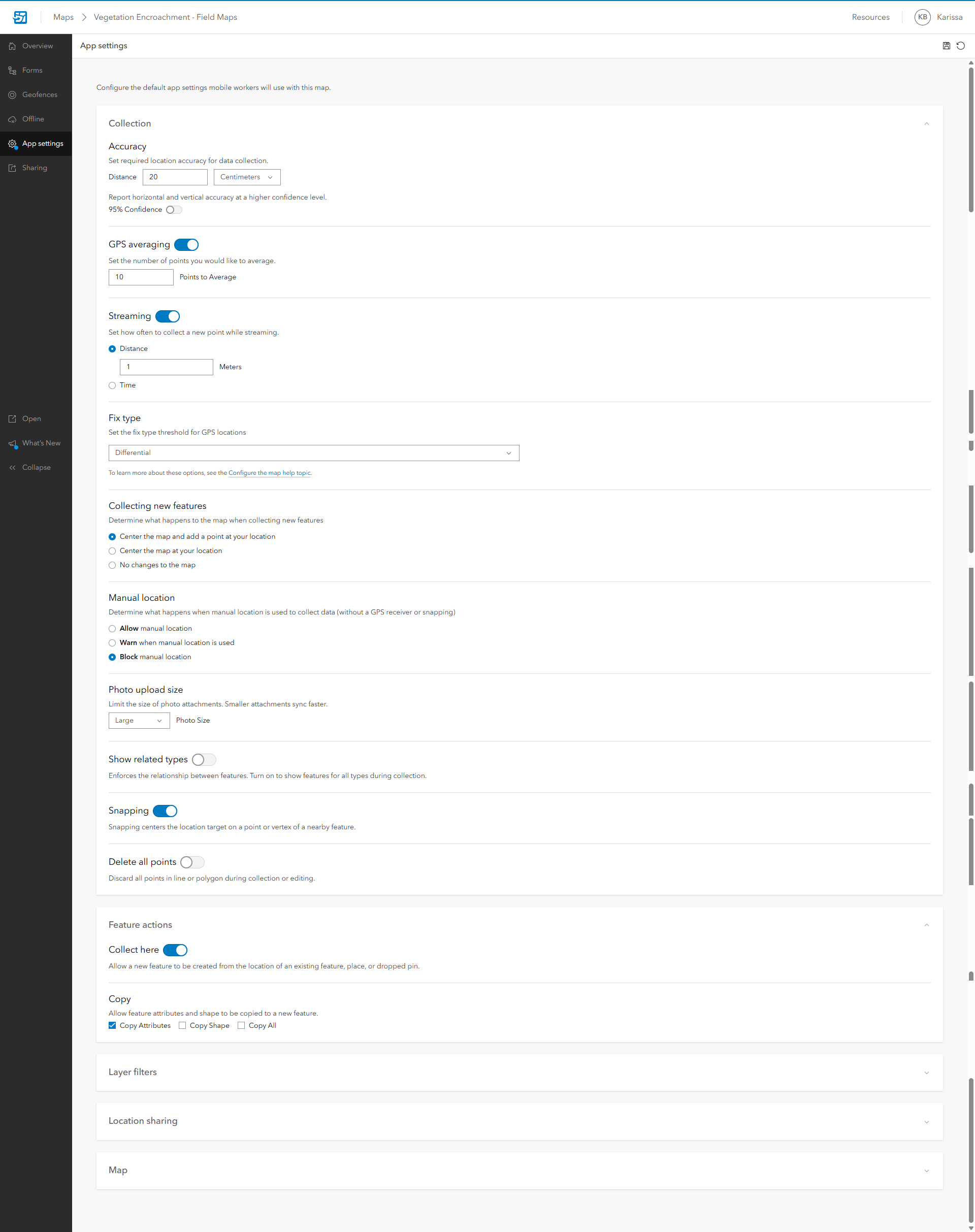
While the settings mentioned above are configured by one person within the ArcGIS Field Maps Designer settings for each map, there are specific settings in ArcGIS Field Maps that need to be configured per mobile device. This can be time consuming for large organizations who have tens or hundreds of mobile devices to configure and becomes a probable source of error. Configuring location profiles to address differences between datums can be particularly concerning. Misconfiguration of these profiles can lead to data transformation issues and misaligned locations. Another ArcGIS Field Maps setting that organizations would want to configure is how often the data syncs from the mobile device to the cloud. This assists in having real-time access and to reduce the risk of losing changes made in ArcGIS Field Maps if a mobile device is lost or broken. Managing these settings is achievable through a mobile device management (MDM) software. A MDM software is often deployed and controlled by IT to manage, monitor, and secure mobile devices used by an organization. In addition to managing ArcGIS Field Maps settings, an MDM can assist in granting secure access to ArcGIS portal and to protect company data that resides on a field worker’s BYO device. For more information on MDM with ArcGIS mobile apps, I recommend checking out this ArcGIS Field Maps help section and technical paper.
In conclusion, the implementation of GNSS configurations in ArcGIS Field Maps offers utility organizations a streamlined approach to capturing accurate location data and maintaining high-quality records. By leveraging GPS metadata fields, configuring collection settings, and utilizing mobile device management software, organizations can enhance their field operations and ensure data consistency. This comprehensive solution not only improves the efficiency of field workers but also supports better decision-making and resource management.