This article shows administrators, IT staff, or other technical staff supporting utility network deployment understand how to interpret log information specific to its workflows. This article is very technical in some places and requires a strong understanding of the concepts and technologies used to describe the utility network.

Edit: If you're looking to do your own log parsing and analysis, you can find the example Python tools used to generate the charts in this article here.
This article was written to help administrators, IT staff, or other technical staff supporting utility network deployment understand how to interpret log information specific to its workflows. This article is very technical in some places and requires a strong understanding of the concepts and technologies used to describe the utility network.
To understand this article you must first have read and be familiar with the Utility Network Diagnostics article. That article describes how to capture log information for different utility network operations. This article builds on those concepts by providing some tips for interpreting these logs and how performance metrics can be extracted to assess the performance of your system. These logs are not a replacement for tools like ArcGIS Monitor but allow you to dive in and investigate potential performance bottlenecks.
Why is this important?
Knowing how to precisely measure and assess performance is an important skill, as it can allow you to quantify the impacts of your data modeling or architectural decisions. You can find a collection of resources that discuss the impact of these decisions in the conclusion of this article.
Note: This article displays screenshots of different charts and logs but does not include any sample data to work with. The charts use different data sets and scales and should not be used to draw any conclusions. You should perform testing with your own data to draw conclusions using the techniques described in this article. The logs shown in this article are from ArcGIS Enterprise 12.1 so newer and older releases may show different messages. The specific wording and structure of the log files change over each release, which is why it is important that you understand how to interpret logs instead of memorizing specific messages.
Another important takeaway from this article is to think about how logs are used. They are an important troubleshooting tool, and they can also demonstrate the impact that data modeling decisions, configuration, or even architecture can have on performance and the end user experience.
Server logs provide detailed information that allows you to measure the performance of specific operations, and in many cases also allows you to correlate the performance impacts to specific subnetworks or about the number of features impacted by that operation. For an example of why this is important, consider the situation where a user complains that subnetworks are updating too slowly.
A normal performance assessment would run the update subnetwork operation against all the subnetworks in the system, using a single process, to create a graph that shows response times returned by this server. This produces a graph, like the following:
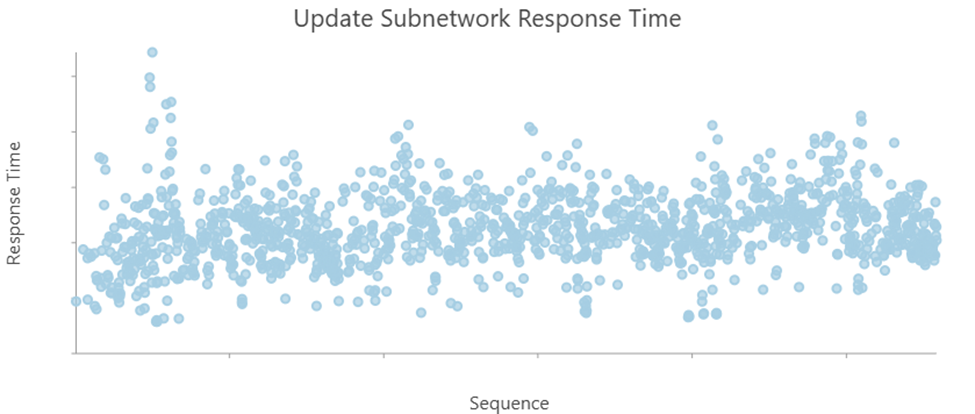
While it is interesting to see the distribution of response times, it does not provide any insight about why some responses are better than others, or what requires further investigation. Instead, this approach treats each response as equal, which in the case of subnetworks is not the case. By parsing the log files, you can produce graphs that offer more actionable insight.
One easy thing you can do to identify problematic subnetworks for review is to create a graph that includes the name of the subnetwork from the logs with its response time.
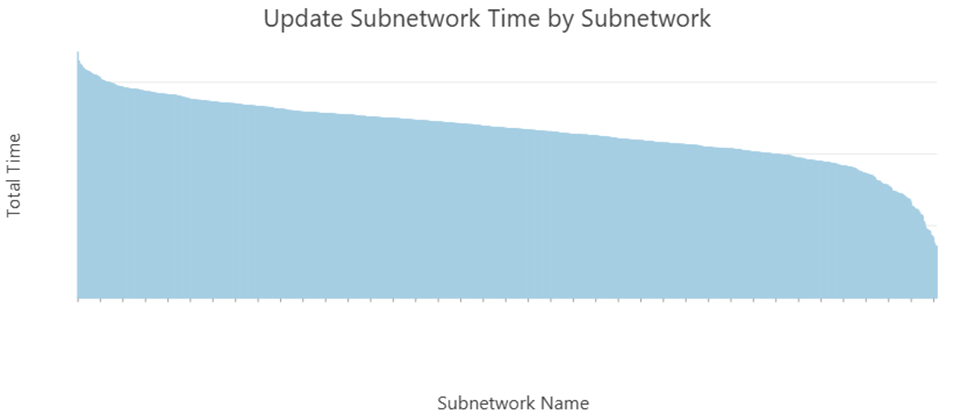
This allows you to find specific a subnetwork in the data for investigation while also giving you a sense of how the overall system is behaving. This makes it easier to identify your best and worst performing subnetworks, as well as any outliers.
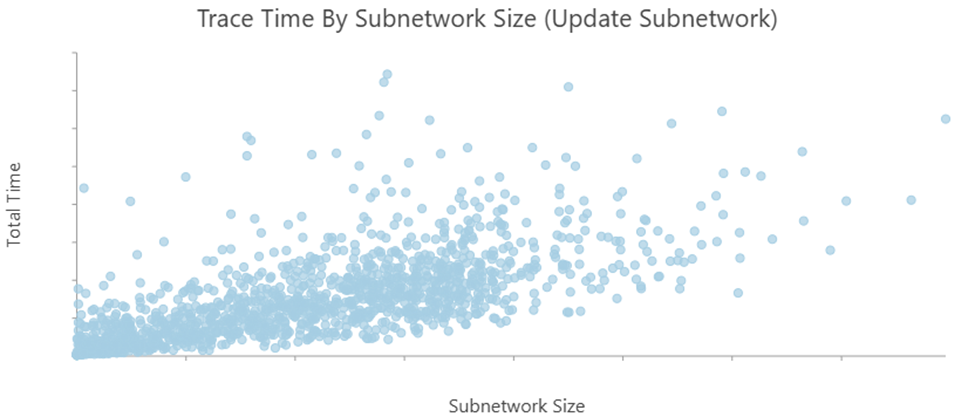
With a little more work, you can also parse the number of features in each subnetwork from the log files. This allows you to create a chart that uses the number of features in each subnetwork on the X-axis.
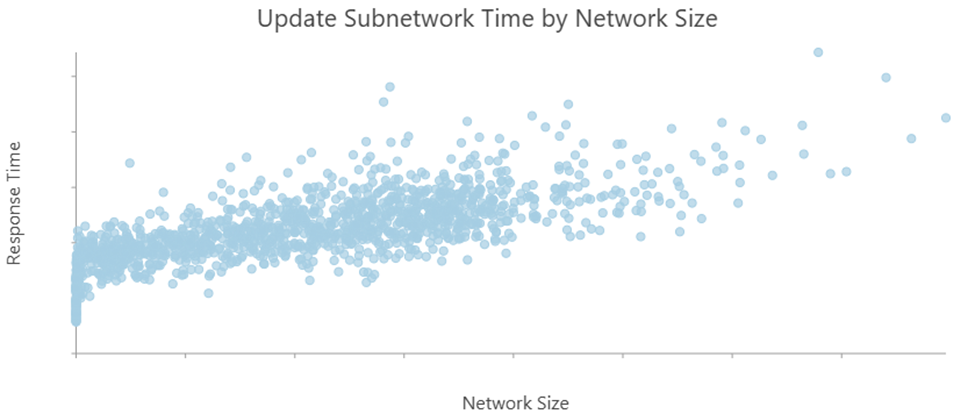
This chart makes it easier to see the correlation between network size and response time. This tells you that most of the time, the subnetworks that take longer to update are larger. It also lets you see that there are a few smaller networks that are taking longer than expected, allowing you to focus your attention on them.
You can take this approach even further by parsing more detailed information from the logs to see the timings associated with specific operations within each subnetwork.
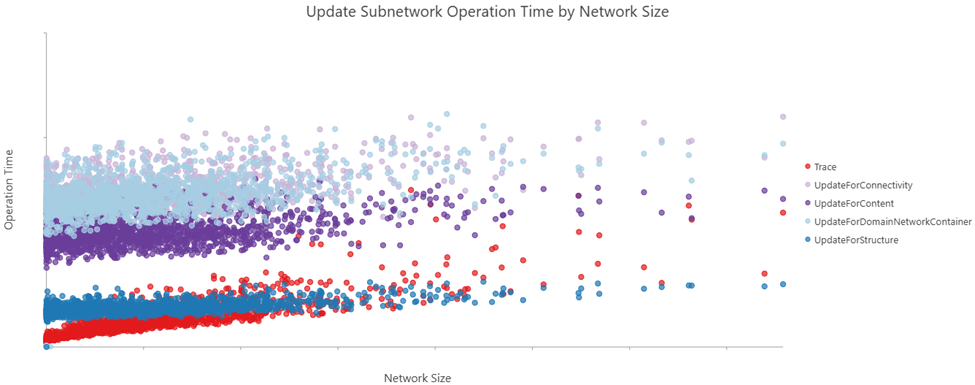
This chart allows you to see the operations, and subnetworks, which are taking the most time. This detailed information allows you to investigate what steps can be taken to improve the timing of those specific operations.
In this article you will learn some of the key considerations to be made when interpreting the times for the following logs:
- Tracing uses the TraceLog
- Update Subnetwork uses the UpdateSubnetworkLog
- Export Subnetwork uses the ExportSubnetworkLog
- Enable Network Topology and Validate Network Topology use the BuildLog
Before talking about the individual logs, let us discuss the importance of using these tools to help isolate and troubleshoot performance issues.
Isolating performance
When troubleshooting a performance issue in ArcGIS Enterprise, it is possible that the performance issue could be caused by a wide variety of architectural, configuration, or even data issues. If the issue you are investigating is focused on the performance of a single operation in the utility network which doesn’t require versioning, a good way to reduce the number of dependencies and isolate the issue is to first copy the utility network to a new mobile geodatabase.
By working with a local mobile geodatabase, you can focus on the performance of the utility network itself without the additional variables associated with the architecture of the ArcGIS Enterprise deployment. This allows you to focus on a single-user, non-versioned workflow.
The performance of the utility network in a local environment is not equivalent to one in an enterprise environment. However, this does allow you to determine whether a performance issue is caused by the data and configuration of the utility network, or the architecture and configuration of the environment.
If the performance issue is not reproducible in the local environment, you can still use the information gained from local tests to help inform your investigation in enterprise. You can compare the times and steps of the detailed logs between the local geodatabase and the enterprise geodatabase to see if any step is taking longer. This could indicate an issue with the database that you can dig into by evaluating the performance plans using tools available for your DBMS.
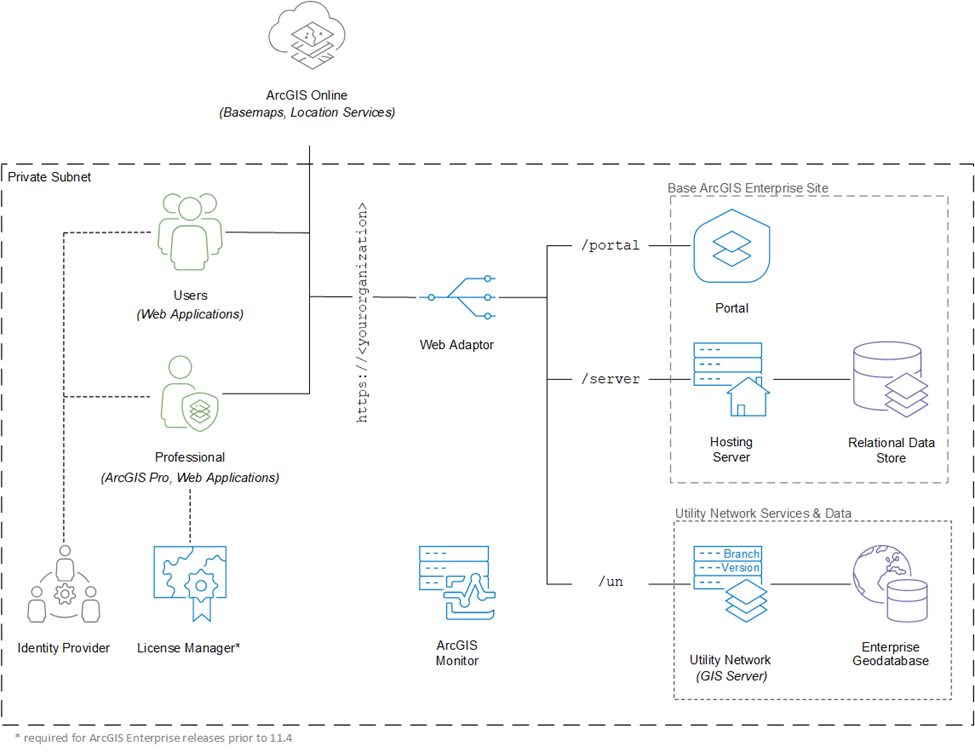
You can also compare the time for each operation reported by the ArcGIS Server logs and compare them to the response times reported by the client. If there are large gaps or inconsistent response times between the two, this could indicate a communication issue between the client and server. The graphics below show you what timings are captured by different logs.
Measuring client response time includes the total time spent completing the request at the application, server, and data tier of the architecture. This is often not useful for identifying the underlying cause of a performance issue but remains important for a full understanding of the context and workflow needed to reproduce the issue.
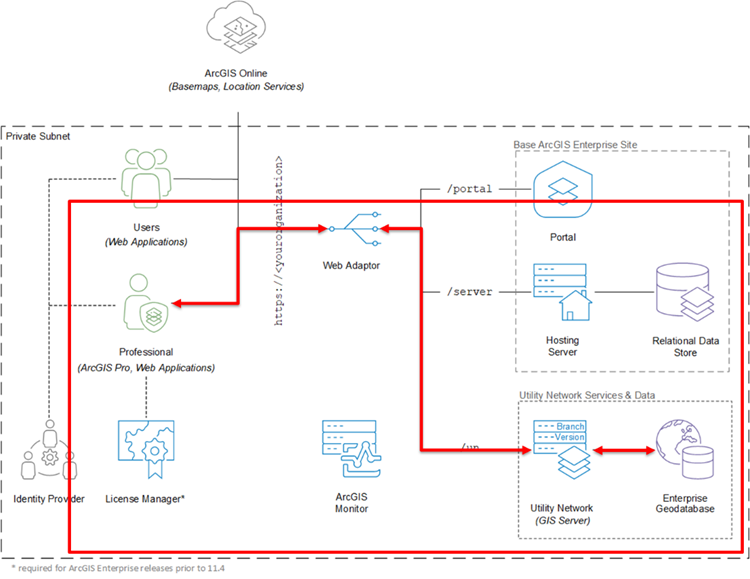
The ArcGIS Server logs allow you to focus on the time spent in the server and data tier, while also providing the context for each request in addition to the time it took.
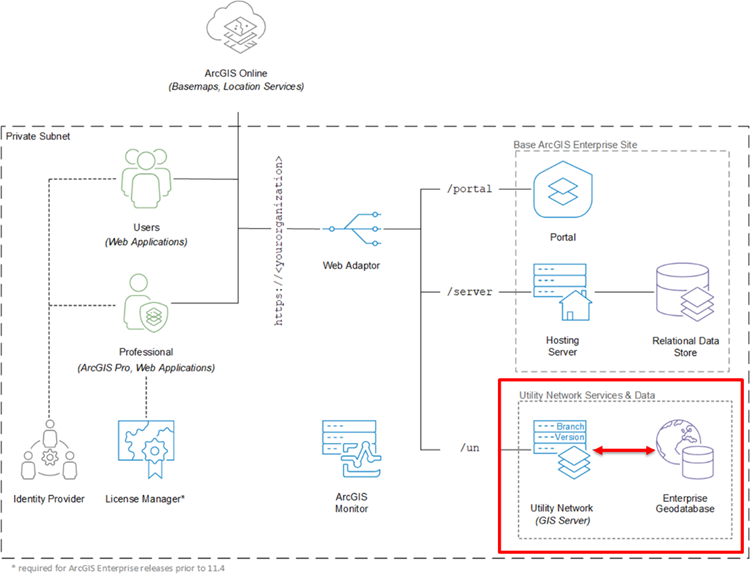
Reviewing performance at the database tier also provides useful insight into performance issues, especially when they are database-related, but lacks the context of the client or application tier.
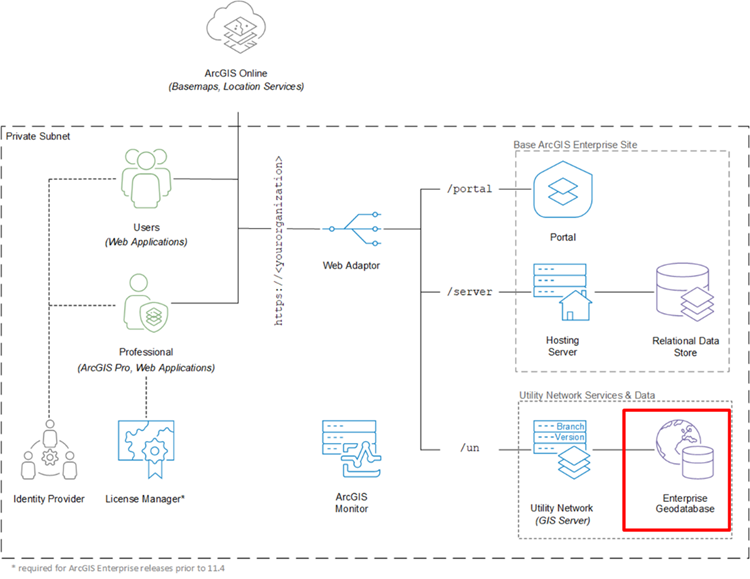
Copying data to a local, mobile geodatabase and capturing logs using the Diagnostic Monitor in ArcGIS Pro is a powerful way to isolate performance issues. This is because it allows you to control the workflow and context of each operation, while also providing the ability to measure its performance with as few dependencies as possible. You can see a diagram of the scenario below.
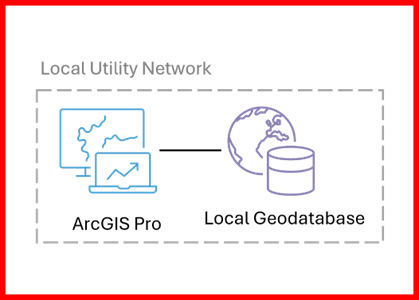
Now that you understand how and why you would want to isolate performance issues when testing, we will look at how you can analyze the utility network logs for performance information.
Trace Log
The Trace Log has four important sections:
- Environment
- Trace Parameters
- Steps and times
- Network index statistics
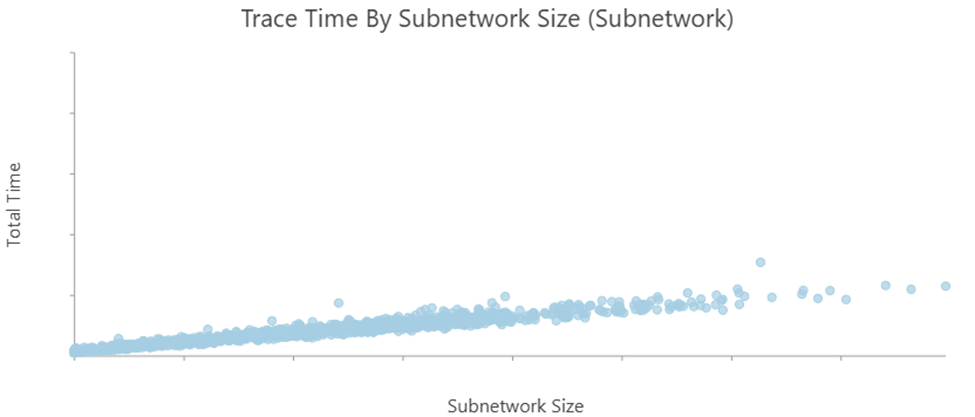
When assessing the overall performance of a system, it is common to look at the overall time each trace took compared to the number of elements returned. The most common test scenario for capturing this is to run a subnetwork trace for each subnetwork in the utility network and then measure the time it took to run the trace versus the number of elements in each subnetwork.
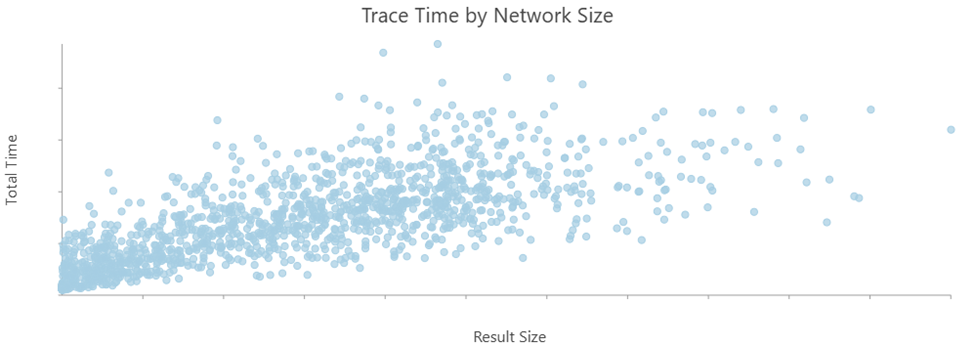
The trace on the same subnetwork will return different performance numbers based on whether it is a user configured trace, or the trace used by the export subnetwork or update subnetwork operations. When measuring the performance of traces, you should look at the performance of subnetwork traces using your standard configuration during update subnetwork. If you plan to use export subnetwork, you should also plan to measure the performance of trace during export subnetwork using your expected configuration.
When a particular subnetwork is underperforming, you can then look at the time associated with the individual steps for each subnetwork vs. the number of elements in each subnetwork.
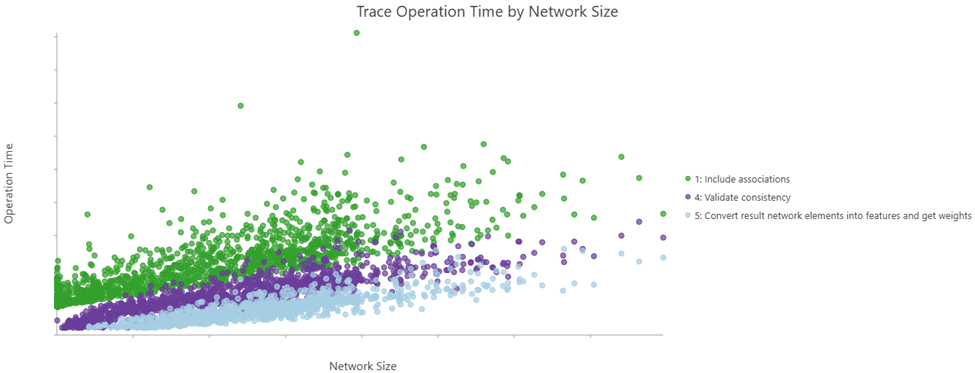
When looking at the various steps associated with a trace operation, you will start to understand why certain traces take longer, and the significant impact the configuration of a trace has on overall performance.
As an example, if you use a chart like this to analyze the performance of trace after adding functions or specific result types you will be able to measure the performance cost of those specific changes with each displayed as its own operation with an associated cost.
Environment and Trace Parameters
The configuration section helps you understand the context of the trace. It communicates the type of trace, version, the starting points, and trace configuration, along with the result types specified for the trace. All these parameters affect the behavior of the trace. Making a change to any one of them would produce a different result and could affect performance.
Steps and times
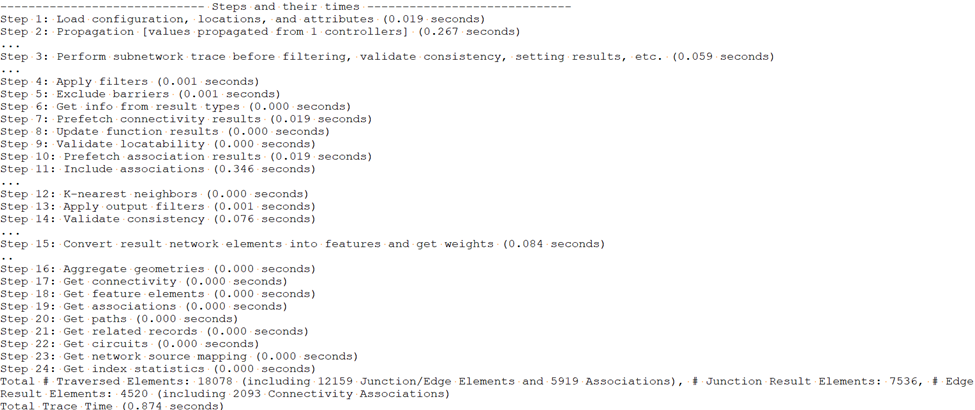
This section of the log includes detailed information about all the operations performed during trace, and how long each took. Some steps also include information about how many features were involved in that step of the trace.
When analyzing the time, the first thing you want to do is look at how much time the total trace took, then you want to look at the size of the results. The number of elements traversed and returned is at the end of the steps and times with the following lines:

The Total Trace Time is easy to understand; this is the total time taken to perform the trace. The number of elements discovered requires a bit more consideration as it includes the number of elements traversed along with the number of elements in the result.

This is important as many traces will traverse many elements yet return only a subset of the results. Even though a small number of features may be returned, the trace may require many features to be analyzed. Examples of this include upstream or downstream traces, traces with a filter barrier configured, or traces run during update subnetwork to discover features in multiple subnetworks. Because of this, traversed elements are often a better predictor of performance than the result size.
You will also want to review the individual steps and their times during trace. These details will show you where the time is spent during trace.
Network index statistics
The network index statistics let you know how much network information was loaded from the database during the analysis. These logs are typically only used by support and development to diagnose specific issues.
This section contains the following statistics:
- Topology table statistics – A summary of how many rows were read from the network topology.
- Associations tables statistics – A summary of how many associations were read.
- Weight engine statistics – A summary of how many network attributes were read.
- Memory manager statistics – A summary of the memory used.
If you do choose to dig into the statistics in this report, you may notice that not all network attributes are reported in the Weight engine statistics section. This is because network attributes stored in-line are stored inside the topology tables and are included when the connectivity for the feature is accessed from the database. Each out-of-line network attribute read from the network index has a small cost associated with it, usually not more than a few milliseconds for a small network. However, when many out-of-line network attributes are read, or when the network is much larger, the cost can become noticeable.

This is the reason you should consider storing the network attributes needed for most of your traces in-line, especially those referenced by your subnetwork definition. Why aren't all network attributes stored in-line? Because there is a limited amount of storage available for in-line network attributes, so you must decide which attributes are most important and ensure they are stored in-line. You will also notice network attributes stored in-line do not appear in the network index statistics.
When trying to compare results between two tests, you can also look at cache misses to determine how much was available in memory (cached) as opposed to rows read from the database.

When trying to compare performance between different traces or operations, it is important to pay attention to the number of cache misses. A trace that is run entirely from memory (hot cache) will perform better than the same trace that must load connectivity information from the database (cold cache).
There is not much you can do to control this in user workflows, but it is important to consider when setting up a consistent testing methodology so you can accurately compare results of different tests. The most conservative and consistent way to measure results is to ensure that all tests are performed against a cold cache.
Update Subnetwork Log
When assessing the performance of update subnetwork, you will want to start by looking at the Update Subnetwork Log created during the update subnetwork operation. Additionally, you will often want to review the Trace Log associated with each subnetwork, since this can often account for most of the time spent updating a subnetwork.
Note: When reviewing the Trace Log for update subnetwork you may notice the steps and time are different than if you just run a trace. This depends on your network configuration, but you will see more time spent finding elements in multiple subnetworks (for networks with propagation), time spent retrieving geometry to calculate the subnetwork line, as well as time spent calculating functions for the aggregated line.
Like the Trace Log, there are three sections to the update subnetwork log.
- Environment
- Subnetwork Parameters
- Steps and times
- Network index statistics
When assessing the performance of update subnetwork you will consider the following pieces of information:
- How long did the subnetwork take to update?
- How large was the subnetwork being updated?
- How many features were updated?
The first two are easily discovered in the log; the last one requires reading the log to find out how many features have changed.
When assessing overall system performance, you will typically look at the amount of time it takes to update each subnetwork in the system versus the number of features in the subnetwork.
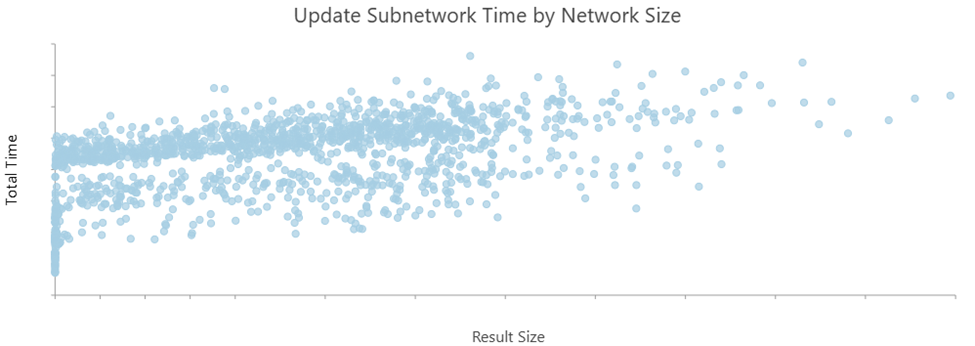
When performing this analysis you can consider three different scenarios:
- How long does it take to perform the first update subnetwork operation?
- How long does it take to update a subnetwork when nothing has changed?
- How long does it take to update a subnetwork when a reasonable number of features have changed?
You will typically want to focus on how much time it takes to run update subnetwork against a reasonable number of edits, since this is what users will experience in their daily workflows. The first update subnetwork is important to consider because it is the most time-consuming and must be performed when the system is deployed. The no-change scenario is interesting to consider as it is the best-case scenario for performance.
When you find a subnetwork that is underperforming, you can look at the time of individual steps to identify whether there is a particular step that takes most of the time.
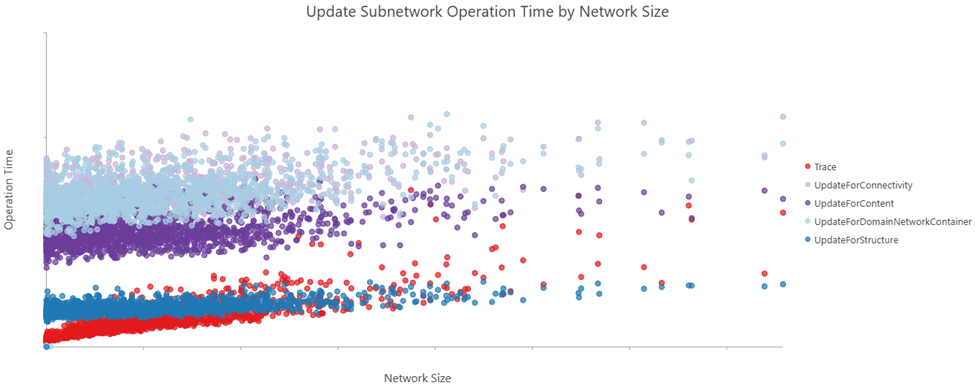
If you compare the time spent running a trace during an update subnetwork operation with a normal subnetwork trace, you will usually find that the trace run during update subnetwork takes longer. This is because update subnetwork does added work to load geometries to aggregate, calculate summary functions, and in some cases find elements in multiple subnetworks.
Environment and Subnetwork Parameters
When reviewing the configuration section of the log you should pay close attention to the following configurations:
- Version Name
- Edit Mode
- Tier Name
The version name and edit mode are important, since the behavior and time it takes to update subnetwork can be different depending on the edit mode used, and whether it happened in default or a named version. You can learn more about these considerations in the Understanding Subnetworks: Edit mode article. In short, when the edit mode is set to ‘with events’ you incur added performance costs from attribute rules, and when the edit mode is ‘without events’ off in a named version, you may not be updating all the features in the subnetwork.
It is also important to consider the tier name when looking at performance, because the trace configuration of the tier controls the behavior of update subnetwork with regards to creating or updating a subnetwork line, network diagrams, etc.
Steps and times
When looking at the steps and times, you are primarily concerned with the following sections:
- Trace
- The various update steps (Connectivity, Content, etc.)
- Managing the subnetwork line
- Managing the network diagrams
- Total
You will look at the Trace to see how much time the trace took, and most importantly how many features were discovered to be part of the subnetwork.
Next you will look at how much time was spent updating the various attributes in the database that track the persisted subnetwork info (subnetwork name, is connected, etc.).
The amount of time spent managing the subnetwork line and network diagrams is usually relatively small. But when they are taking a significant amount of time you may need to review the configurations for those items.
The Total line tells you the total time it took to update the subnetwork.
Network index statistics
The considerations for reviewing the network index statistics for update subnetwork are the same as for the Trace Log.
Export Log
When assessing the performance of export subnetwork you are considering three things:
- What result types, attributes, etc. were exported?
- How long did it take to get all the information that was requested by the trace to be exported?
- How long did it take to generate the file?
To answer these questions, you will primarily look at the Export Log. There is a TraceLog generated for the trace that is run as part of the export subnetwork operation if you need more detailed breakdown of time spent during that operation.
Within the Export Log there are five different sections:
- Environment
- Subnetwork Parameters
- Export Parameters
- Steps and their times
- Network index statistics
When assessing the overall performance of export subnetwork, you want to compare the amount of time it took to run export subnetwork with the number of features being exported. However, unlike TraceLog and UpdateSubnetworkLog it does not include a count of how many features were returned by the trace.
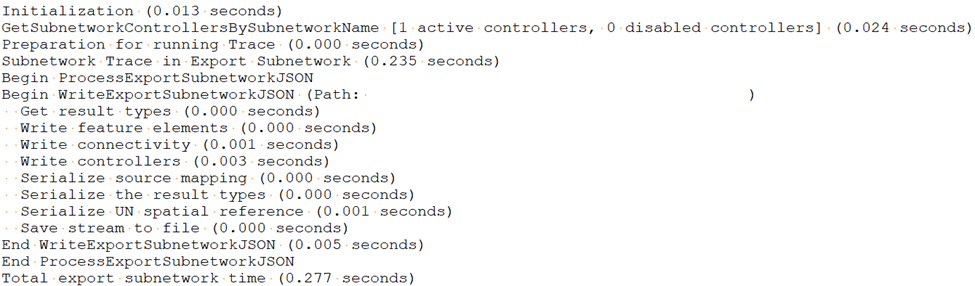
The count of features can, however, be extracted from the TraceLog.

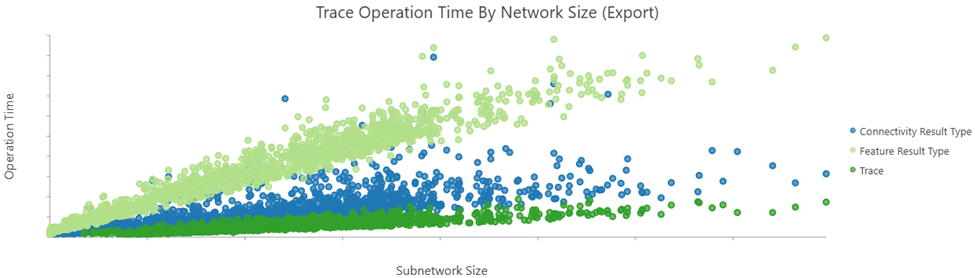
When you find a subnetwork underperforming during the export operation you will want to look at where the time is spent in the export log. If most of the time is spent on the trace, then you will want to review the trace log. When doing this, it is often useful to compare this with the amount of time spent during a trace in export with the time spent during a normal subnetwork trace (that does not include any result types or functions).
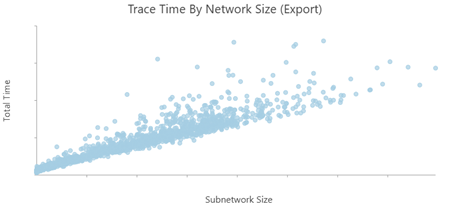
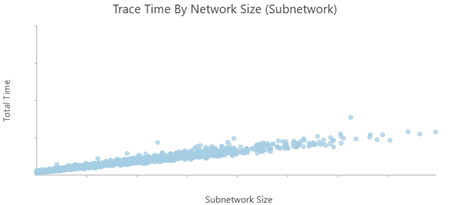
This approach lets you identify how much time is spent during the trace in export subnetwork getting each result type (connectivity, feature elements, etc.) along with how much time was spent running the trace. The trace during export will always take longer than a regular trace because it must read additional information from the database. Looking at the details of the trace log during export lets you see how much time is spent getting each result type.
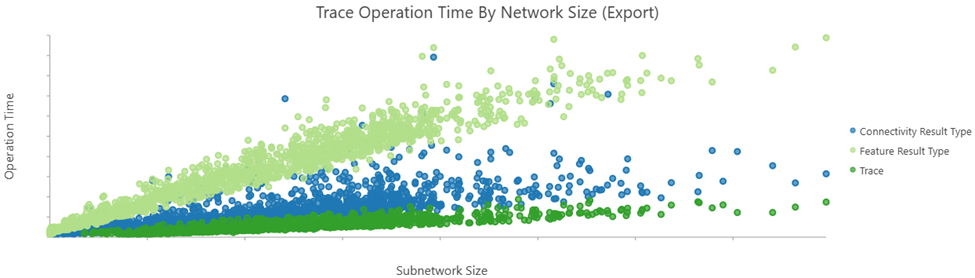
This is why it is important that you only export the attributes and other information that is necessary, because the cost of exporting unnecessary information can be high.
Environment and parameters
Export subnetwork has many options which control what you can export. However, the more information you include in the export, the longer the trace used to gather all the information will take. The more information you include in the export, the larger the files will be and the longer it will take to generate and download the files.
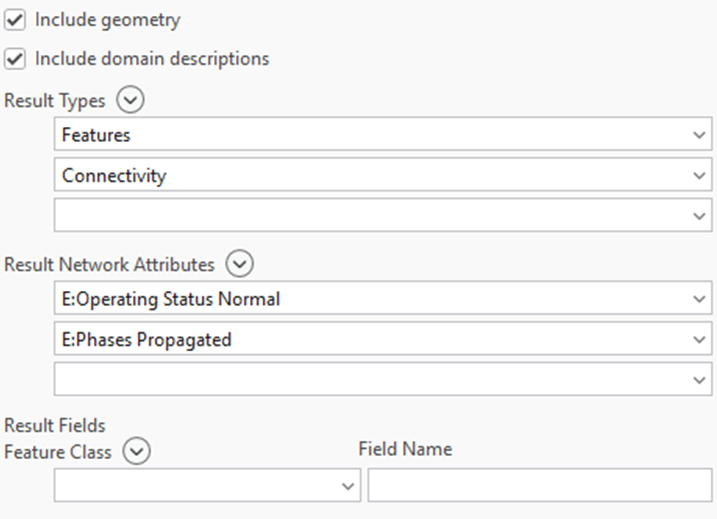
You can see what information a user specified to include in their export by looking at the export parameters section of the report. This lets you see what result types were included along with how many network attributes, result fields (for features), and related record fields (for related records) were selected.
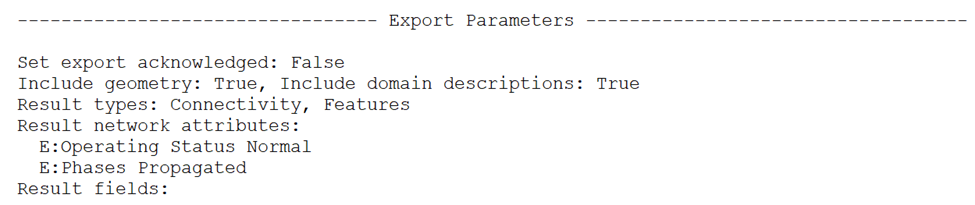
Including many attributes from features and related records requires making added queries to the database, which can add more time to the trace to get this information. Additionally, selecting many attributes can drastically increase the file size. Including all the network attributes for a subnetwork can double the file size and the amount of time it takes to export the subnetwork. Including attributes from many different tables will have an even greater negative effect on performance.
Steps and times
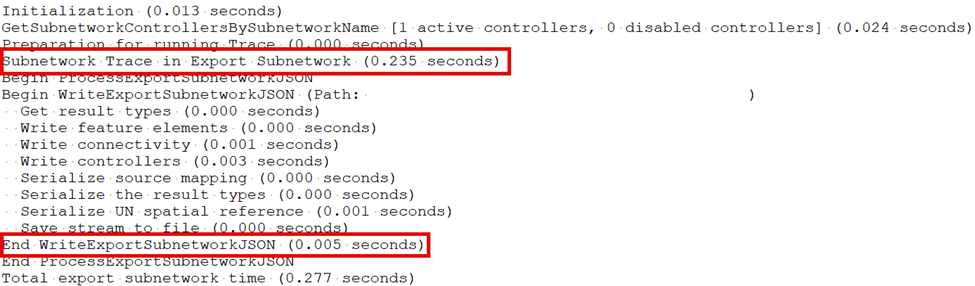
There are fewer steps to analyze in the export subnetwork log. In most cases, the trace is going to be the highest cost during export subnetwork. However, if you see a large amount of time spent on the Process/Write JSON steps this is an indicator that the file is large and is taking a long time to serialize, download, and persist.
Network index statistics
The considerations for reviewing the network index statistics for export subnetwork are the same as for the Trace Log.
Build Log
The format of the build log is different from the rest of the utility network diagnostic logs because it is designed to be an incremental log generated during potentially long running sessions. Because of this, each line in the build log reports the amount of time it took to complete the step, the total amount of time taken up to that point, and the amount of memory used at that moment.
The same log file format is used for all three build operations:
- Enable Network Topology
- Disable Network Topology
- Validate Network Topology
Because of this, you may notice that the numbering of steps in some logs may appear to skip certain steps. This is because all steps do not apply to all operations.
When reviewing the logs you want to focus on the following sections
- Environment
Steps and their times
- Build network setup
- Post build processing
- Network index statistics
When evaluating performance, you want to consider what kind of build is occurring, how many network attributes are processed, how much available memory/disk space there is, whether there any analysis was performed to identify subnetworks affected by the validate (post-build processing), and how many features are processed. Most of this information is available in the environment and build network setup sections of the log.
For Enable Network Topology and Disable Network Topology, you are primarily concerned about throughput, memory usage, and disk usage. The more you can rely on memory to build the network topology, the faster it will go, but for large datasets this is not realistic. In those cases, the build will start writing information out to disk, at which point you will need to ensure that the configured disk is fast (ideally an SSD) and that there is enough disk space to hold the temporary files.
For Validate Network Topology, you are primarily concerned about the total time it took to build the network since a user typically calls Validate Network Topology, and you want to minimize the amount of time they are waiting. If you are noticing a large amount of time spent on the Post build processing, then you will want to familiarize yourself with the Understanding Subnetworks Status article. This behavior is controlled by the subnetwork definition for each tier in the network and can be modified even after you've deployed your utility network. Utility networks configured to maintain a status field on their subnetworks must perform post build processing during Validate Network Topology to find the subnetwork(s) affected by the validate so they can be marked as dirty.
Environment and build network setup
The extent validated is shown in the environment section of the build log, the extent is only meaningful when evaluating Validate Network Topology. This is because Enable Network Topology and Disable Network Topology always run on the full extent of the network.
The build network steps, along with the name of the log file, will show the type of build performed. You can also see how many network attributes, memory, and disk space were available when the process started. If the amount of memory used during build exceeds the amount of memory available, then the process will start writing to disk and will become slower.
Steps and their times
There are many steps during the network build process, and while they are not all described here you should keep the following items in mind while reviewing the logs:
- How much information was processed during this step?
- How much information was created during this step?
- How much time/memory did this step use?
Each step typically reports the total amount of time the step took to complete in the last message for the step.
You can find the total time the entire operation took by looking at the last line of the log file.
To identify the amount of memory used you will need to compare the total memory reported during the first log message for the step with the total memory reporting during the last log message for the step.
Network index statistics
Because the network build process populates the network index, this section can be interesting to understand how much information the system tables read, wrote, or created during the process. However, there is not much you can do to influence these numbers once you have deployed a utility network.
If you are early on in a project, you will be able to see the impacts of how many network attributes you have and can use the opportunity to ensure that you require all the network attributes that in the model you are building. If you do not need the network attributes for any workflows, and you are early in a project and can still remove them from your model, consider doing this. You can always add a network attribute to a network, but once it is deployed, it cannot be removed.
If you are considering whether to continue to model related records as related records, or to model then as nonspatial objects with connectivity and/or containment, you will be able to see the time it takes to build the network to incorporate those additional nonspatial objects into the network.
Conclusion
Now that you have read this article, you should be familiar with how to interpret the logs for the four major operations of the utility network. You can begin to run performance tests and interpret the results at a granular level. As you design your architecture and make important data modeling decisions, you can measure the impact of these decisions on your performance.
For a more systemic approach to capturing and measuring performance numbers, you may want to use a tool like Extract Log Files to combine logs in a database. The graphics in this article were created using an approach where performance numbers were extracted from each log file using a regular expression and used to create visualizations.
These log files are important because they give a precise measurement of the amount of time that the server is performing specific operations. They are extremely valuable for assessing a single operation; however, they do not provide the whole picture. Performance analysis must be performed holistically, so it considers not only the performance of the utility network, but the impact that the entire architecture has on performance as well as how the system performs under load.
For examples of performing a more holistic approach to testing and design, visit the ArcGIS Architecture Center.
For examples of how modeling related records can affect performance, refer to the Modeling related data in a utility network article.
For examples of how your edit mode configuration of your subnetwork can affect update subnetwork performance, read the Understanding Subnetwork Edit Mode article.
For examples of how the status management configuration of your subnetwork can affect validate network topology performance, read the Understanding Subnetwork Status article.