High resolution elevation data has many strengths and advantages. Representing human-made infrastructure below ground is not one of them. That means stormwater infrastructure, like culverts which redirect water underneath roads, are not captured in elevation data. For hydrologic analysis, this causes inaccurate or disrupted streams when deriving them from elevation data. Often without access to culvert location data either, hydrologists must turn to other solutions for this problem.
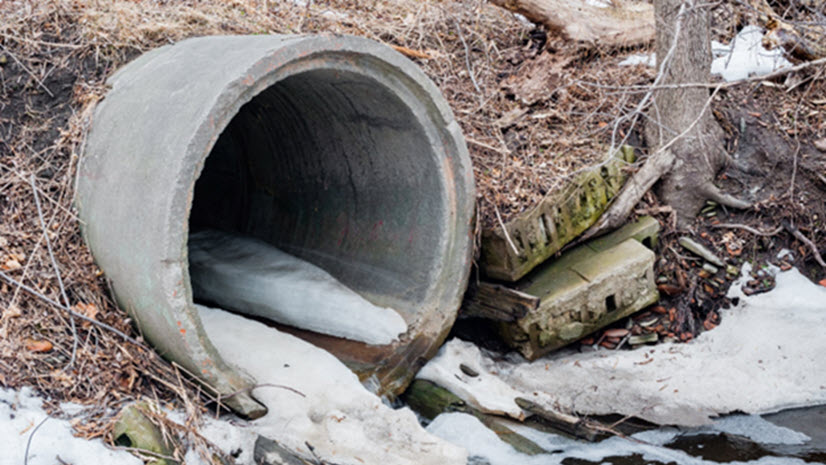
© 2025 Adobe Stock. All rights reserved.
The Locate Depressions tool, new to ArcGIS Pro 3.6, can help overcome this problem and find potential culvert locations for elevation derived hydrography workflows. The tool finds areas, called depressions, that are topographically lower than the surrounding terrain. Then it filters the depressions based on spatial characteristics to identify potential locations of culverts or other features.
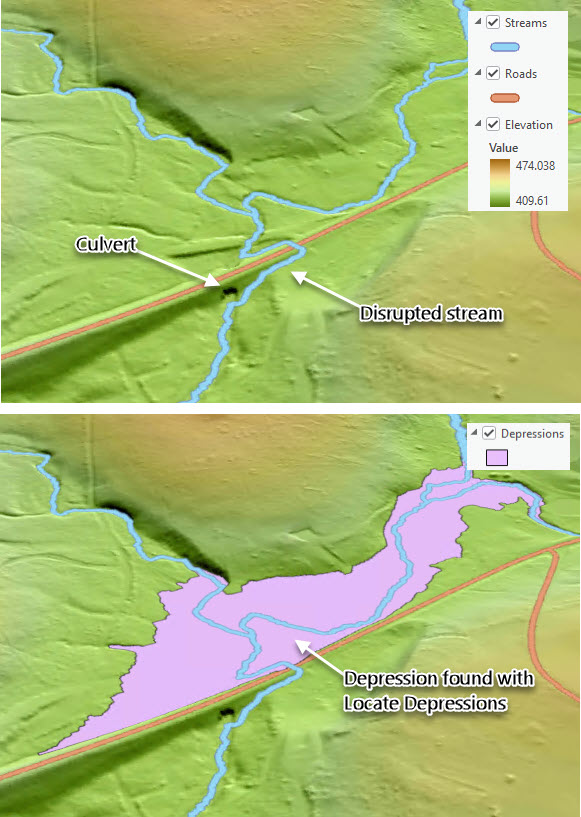
Figure 2: A disrupted stream near a culvert (top) and the depression found by running Locate Depressions (bottom).
As input, Locate Depressions takes a surface raster and, optionally, road data. When specifying road data, depressions can be filtered by how close they are to a road. Depressions can also be filtered based on their geometry and where water might flow if a culvert were present. Only the depressions that meet the criteria specified by these optional parameters will be included in the output.
The Minimum Depth and Minimum Area parameters control the minimum values allowed for a depression’s maximum depth and area. These parameters can filter out small, insignificant depressions.
The Maximum Distance to Roads parameter is used when road data is specified. It limits how far the edge of a depression can be from a road. Culverts are built to direct flow under roadways, so this allows for filtering out depressions ‘in the middle of nowhere’.
The Maximum Distance to Connection parameter limits how far a depression’s downstream connection can be from the depression itself. It’s the closest cell with an elevation lower than the depression’s lowest elevation cell. This is a possible location where water could flow after entering the depression. If a culvert is present, the lowest elevation point in the depression could be the entrance, and this downstream connection is a possible exit point. The Maximum Distance to Connection parameter tries to capture maximum culvert length.
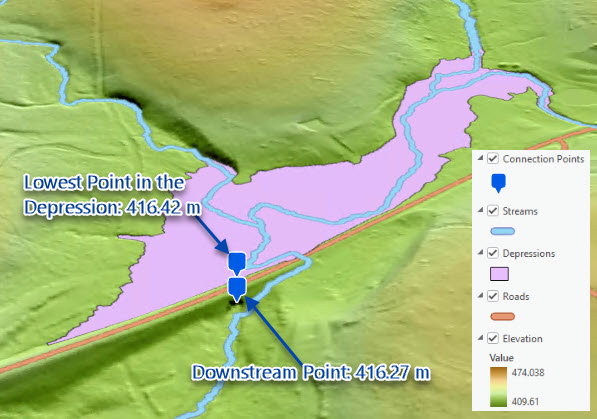
Figure 3: A depression and its connections points: the lowest elevation point in the depression and downstream point. The downstream point is the closest point with a lower elevation than the lowest point in the depression.
The Locate Depressions tool’s primary output is depression polygons. This tool can also output the connection cells as points: the lowest elevation cell for each depression and the downstream connection cell.
Here are a depression and its connections points created from running the tool on a Pennsylvania study area.
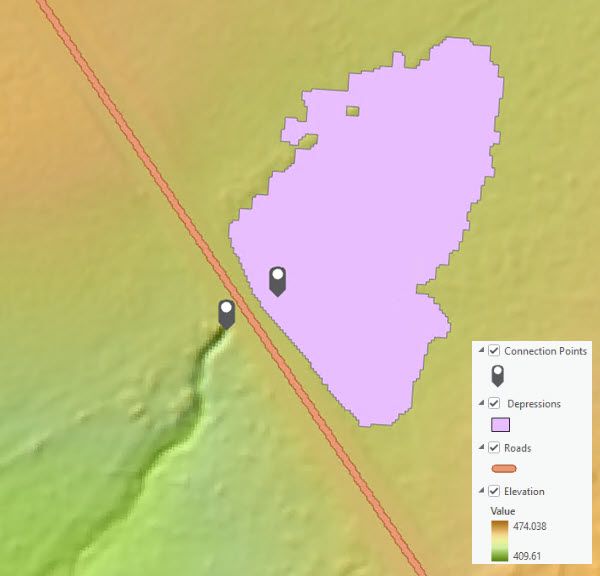
Figure 4: An example of the depression polygons and connection points outputs.
Notice that the downstream connection point is directly across the road from the depression. It’s likely there is a culvert at this depression going under the road.
To focus on depressions that follow this patten of being close to roads with a connection point close by. Rerunning the tool with an increased Minimum Area of 40 Square Meters and a decreased Maximum Distance to Connection of 20 Meters can help identify larger depressions with closer connection points.
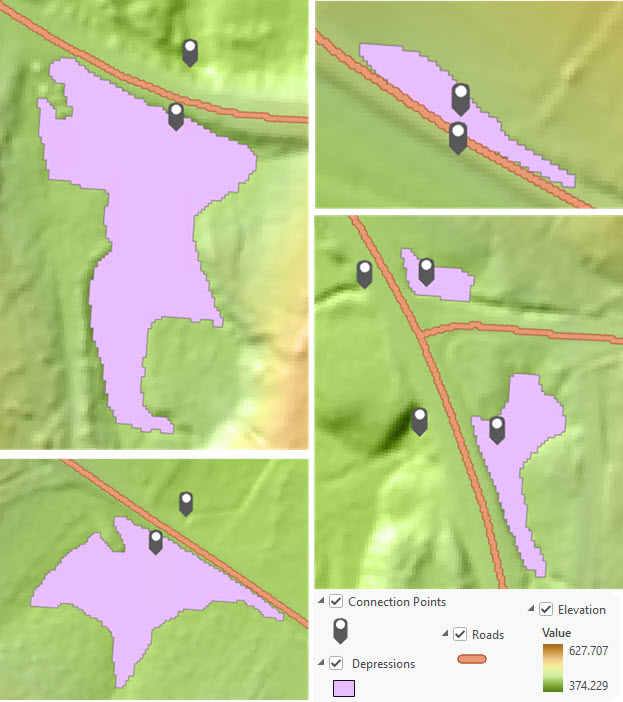
Figure 5: Examples of depressions found with a road nearby and connections points across the road from each other.
Many depressions output from these settings show a similar pattern to the previous example. Indicating that culverts are likely present nearby.
Instead of manually identifying culverts or other features, use the Locate Depressions and ensure that these are captured in your elevation data for hydrologic analysis.
To learn more about this tool, visit How Locate Depressions works.
References
- Elevation data downloaded from U.S. Geological Survey, National Geospatial Program.
- Road data downloaded the Pennsylvania Department of Transportation’s Open Data Portal (https://data-pennshare.opendata.arcgis.com/).
The original blog was first published in the ArcGIS Blog, and can be found here:
https://www.esri.com/arcgis-blog/products/arcgis-pro/analytics/find-possible-culvert-locations-with-the-locate-depressions-tool