Did you know that you can add data directly from the web and interact with the table directly in ArcGIS for Excel?
It is possible to import data from online sources and manage tables directly within ArcGIS for Excel.
Let us proceed.
Connect to web data
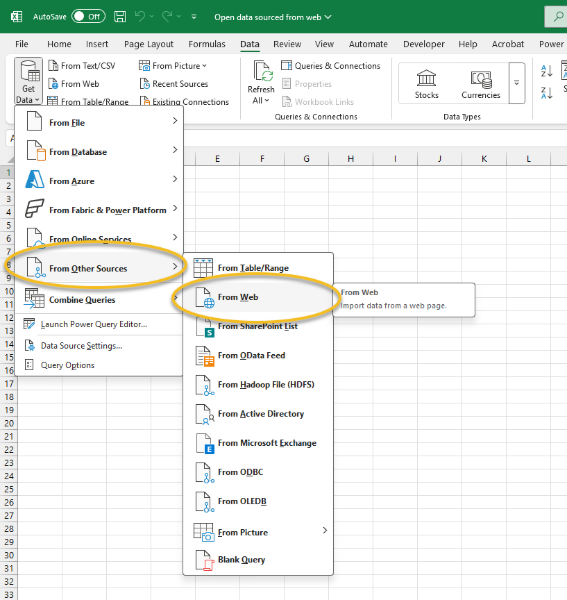
Launch the Excel desktop application with the ArcGIS for Excel add-in enabled. In Excel, go to the Data tab at the top ribbon, then click 'Get Data,' select 'From Other Sources' and choose 'From Web'.
A pop-up window will appear for you to copy or paste the desired URL. Paste the URL of the dataset you wish to import (for example, the City of Casey Open Data exchange link). Click OK to proceed.
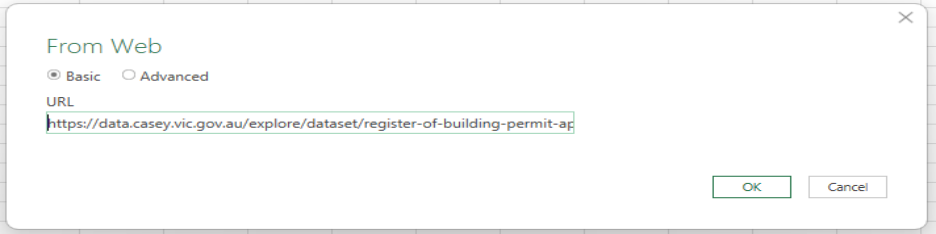
For this example, Register of building permits for City of Casey Open Data exchange
The Excel Navigator pane shows suggested tables and display options. After choosing a table, the Power Query Editor opens with a preview. Adjust query settings if needed, then select Close and load to display the data in your spreadsheet.
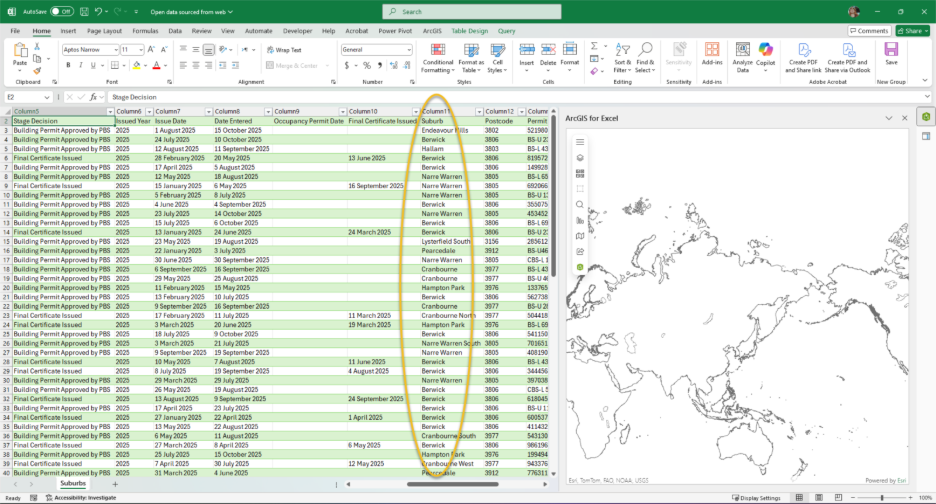
For this example, we will focus on the post codes of Australia in the City of Casey. The imported table displays columns for suburb name, permit number, and postal code, allowing us to visualize building activity across different regions
Map data
After your data is loaded, you can start mapping in ArcGIS for Excel by taking the following steps: choose the ArcGIS tab, open the map, log in, and add a layer with the specified parameters.
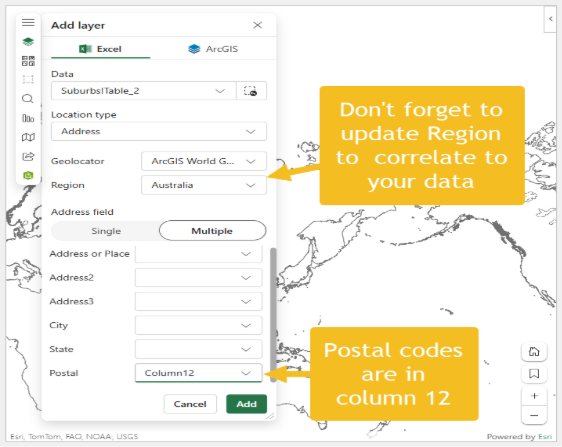
The map is configured to present the data. At this point, you may rename the layer within the Table of Contents, modify symbols, or adjust additional settings as required to accommodate your mapping objectives.
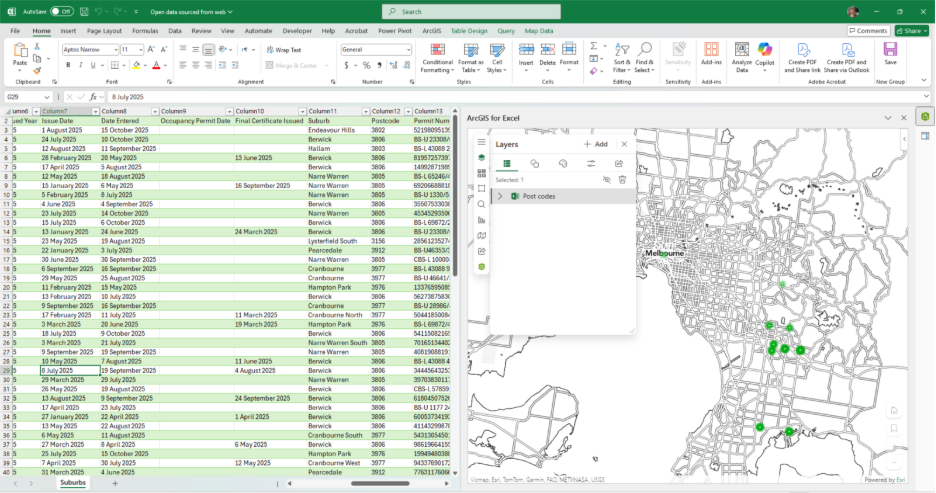
There are a number of ways to continue your analysis at this stage, such as adding ArcGIS data from the Living Atlas or expanding your datasets using the function builder.
For the purpose of this example, we will analyze population density in relation to each suburb that is acquiring building permits. To enrich my data further, we will need latitude and longitude coordinates. To obtain this information, we will use the =ARCGIS.GETCOORDINATES functions using the postal codes. The ARCGIS.COORDINATE function calculates latitude and longitude coordinates and allows us to accurately map each suburb and analyze spatial patterns related to building permits.
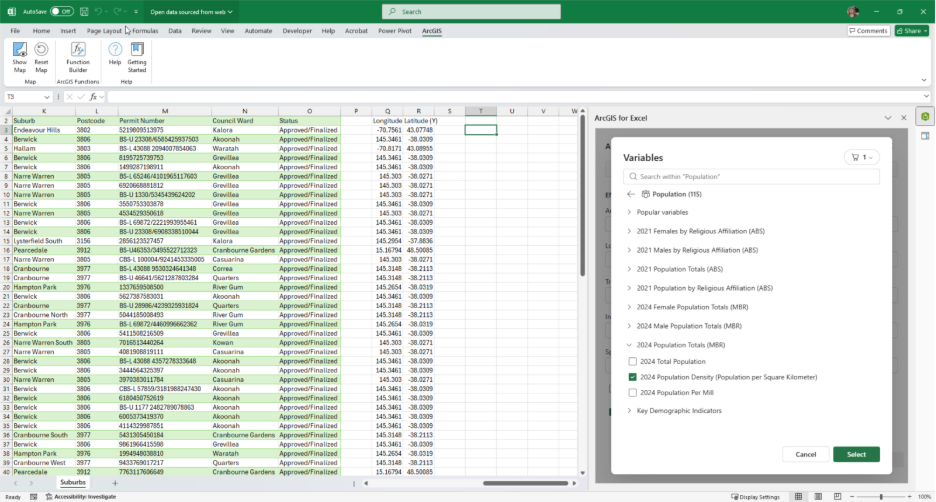
The 2024 population density estimate represents the number of individuals per square kilometer within a geographic area, in this example, it is calculated using a 10-mile ring buffer.
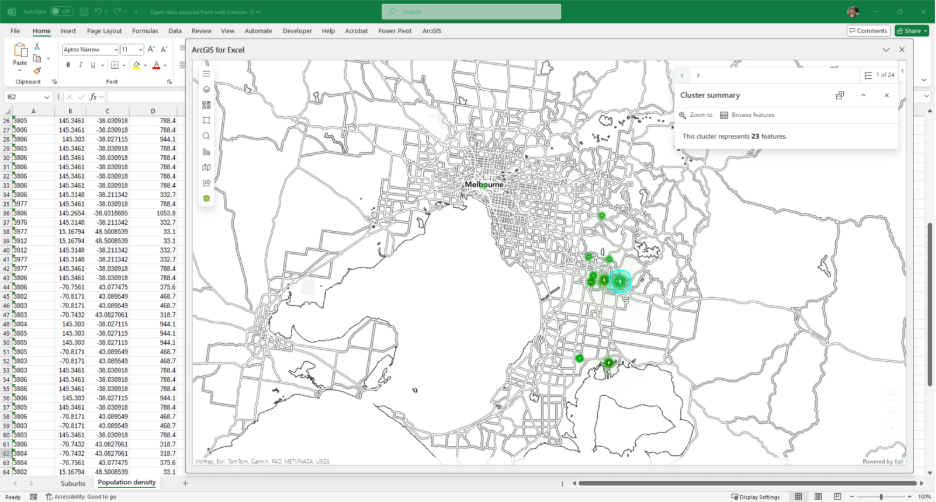
For further analysis, it is advisable to prioritize regions with higher population densities when approving building permits. This approach aims to address overcrowding, reduce downtime, and enhance awareness among current residents.
Share Results
Finally, share your layer with your ArcGIS Online organizational or Enterprise account. Click “share layer,” then enter a title, tags, summary, and choose the appropriate sharing or group level before selecting Share. This process imports the layer directly from an open data source into your organizational account, making it available for further analysis or sharing with colleagues.
There are about 23 permits ready for immediate processing in Berwick. Focusing on high-density areas helps city planners tackle housing shortages, manage traffic, and allocate resources efficiently. This approach supports effective infrastructure development and addresses community needs.
On behalf of the ArcGIS for Excel team, we want to Thank You for a wonderful 2025. Happy Holidays and Happy New Year!
Till next time....
SC
