Summary
Text to Speech module enables applications created with AppStudio to support accessibility features such as text-to-speech with voice modulation on four speech attributes: volume, pitch, speech rate and locale. Text to Speech module is useful for providing audio feedback to end users. The most common use case where text-to-speech comes in handy is when the end-user is driving while the app is navigating the direction, in this scenario, the navigation application can read out the turn-by-turn directions.
Text to Speech functionality was first introduced as a Beta feature in AppFramework as part of AppStudio 1.4. What this means is we are looking for your feedback, use cases and what you want us to improve on. Future changes may affect your app and may require additional changes to support it.
Since then, we have been adding a lot of new features to Text to Speech functionality but it is still in Beta. In AppStudio 2.0, you can
- Convert text into speech
- Control voice modulation such as volume, pitch and rate/speed
- Choose the locale and language of the speech
- Choose the voice engine used
To get a taste of the Text to Speech functionality, we will be covering the following
- How to add Text to Speech functionality in your app
- Minimal app - Text to Speech sample
- Voice Modulation control: volume, pitch, rate
- Locales and language
- Voice engine
1. How to add Text to Speech functionality in your app
<SPAN class="punctuation token">.</SPAN><SPAN class="punctuation token">.</SPAN><SPAN class="punctuation token">.</SPAN>
<SPAN class="keyword token">import</SPAN> ArcGIS<SPAN class="punctuation token">.</SPAN>AppFramework<SPAN class="punctuation token">.</SPAN>Speech <SPAN class="number token">1.0</SPAN>
<SPAN class="punctuation token">.</SPAN><SPAN class="punctuation token">.</SPAN><SPAN class="punctuation token">.</SPAN>
TextToSpeech <SPAN class="punctuation token">{</SPAN>
id<SPAN class="punctuation token">:</SPAN> textToSpeech
<SPAN class="punctuation token">.</SPAN><SPAN class="punctuation token">.</SPAN><SPAN class="punctuation token">.</SPAN><SPAN class="punctuation token">.</SPAN>
<SPAN class="punctuation token">}</SPAN>
<SPAN class="punctuation token">.</SPAN><SPAN class="punctuation token">.</SPAN><SPAN class="punctuation token">.</SPAN>
Button <SPAN class="punctuation token">{</SPAN>
onClicked<SPAN class="punctuation token">:</SPAN> <SPAN class="punctuation token">{</SPAN>
textToSpeech<SPAN class="punctuation token">.</SPAN><SPAN class="token function">say</SPAN><SPAN class="punctuation token">(</SPAN><SPAN class="string token">"This text will be converted in to speech"</SPAN><SPAN class="punctuation token">)</SPAN><SPAN class="punctuation token">;</SPAN>
<SPAN class="punctuation token">}</SPAN>
<SPAN class="punctuation token">}</SPAN>
<SPAN class="punctuation token">.</SPAN><SPAN class="punctuation token">.</SPAN><SPAN class="punctuation token">.</SPAN><SPAN class="punctuation token">.</SPAN><SPAN class="line-numbers-rows"><SPAN></SPAN><SPAN></SPAN><SPAN></SPAN><SPAN></SPAN><SPAN></SPAN><SPAN></SPAN><SPAN></SPAN><SPAN></SPAN><SPAN></SPAN><SPAN></SPAN><SPAN></SPAN><SPAN></SPAN><SPAN></SPAN><SPAN></SPAN><SPAN></SPAN><SPAN></SPAN><SPAN></SPAN><SPAN></SPAN><SPAN></SPAN><SPAN></SPAN><SPAN></SPAN></SPAN>2. Minimal app - Text to Speech sample
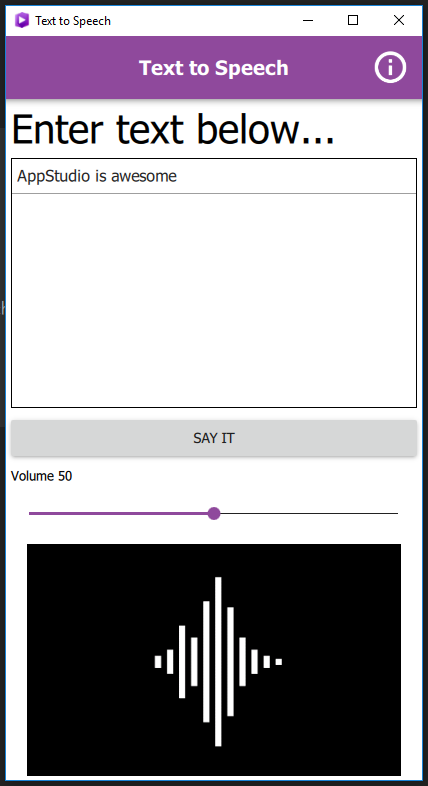
This minimal working sample enables user to enter any text in the text area, and click on the button "Say It", and the text will be converted to speech. It shows the animation while the it is talking and you can adjust the volume of the voice using the Volume slider.
This sample is available in AppStudio Desktop, you can find it by clicking on the "New App" button and search for "Text to Speech". The source code is available in AppStudio Samples GitHub Page, Github - esri/app-studio-samples - Text to Speech.
3. Voice Modulation control: volume, pitch, rate
You can also control the voice modulation such as the volume, pitch and rate or the speed of the speech.
PropertySlider <SPAN class="punctuation token">{</SPAN>
id<SPAN class="punctuation token">:</SPAN> pitchSlider
onValueChanged<SPAN class="punctuation token">:</SPAN> <SPAN class="punctuation token">{</SPAN>
textToSpeech<SPAN class="punctuation token">.</SPAN>pitch <SPAN class="operator token">=</SPAN> value<SPAN class="punctuation token">;</SPAN>
<SPAN class="punctuation token">}</SPAN>
<SPAN class="punctuation token">}</SPAN>
PropertySlider <SPAN class="punctuation token">{</SPAN>
id<SPAN class="punctuation token">:</SPAN> rateSlider
onValueChanged<SPAN class="punctuation token">:</SPAN> <SPAN class="punctuation token">{</SPAN>
textToSpeech<SPAN class="punctuation token">.</SPAN>rate <SPAN class="operator token">=</SPAN> value<SPAN class="punctuation token">;</SPAN>
<SPAN class="punctuation token">}</SPAN>
<SPAN class="punctuation token">}</SPAN>
PropertySlider <SPAN class="punctuation token">{</SPAN>
id<SPAN class="punctuation token">:</SPAN> volumeSlider
onValueChanged<SPAN class="punctuation token">:</SPAN> <SPAN class="punctuation token">{</SPAN>
textToSpeech<SPAN class="punctuation token">.</SPAN>volume <SPAN class="operator token">=</SPAN> value<SPAN class="punctuation token">;</SPAN>
<SPAN class="punctuation token">}</SPAN>
<SPAN class="punctuation token">}</SPAN><SPAN class="line-numbers-rows"><SPAN></SPAN><SPAN></SPAN><SPAN></SPAN><SPAN></SPAN><SPAN></SPAN><SPAN></SPAN><SPAN></SPAN><SPAN></SPAN><SPAN></SPAN><SPAN></SPAN><SPAN></SPAN><SPAN></SPAN><SPAN></SPAN><SPAN></SPAN><SPAN></SPAN><SPAN></SPAN><SPAN></SPAN><SPAN></SPAN><SPAN></SPAN><SPAN></SPAN><SPAN></SPAN><SPAN></SPAN><SPAN></SPAN></SPAN>4. Locales and Language
You can set the locales and language setting
textToSpeech<SPAN class="punctuation token">.</SPAN>locales <SPAN class="operator token">=</SPAN> locales<SPAN class="punctuation token">;</SPAN><SPAN class="line-numbers-rows"><SPAN></SPAN></SPAN>
5. Voice Engine
You can also choose from available Voice Engines
ComboBox <SPAN class="punctuation token">{</SPAN>
model<SPAN class="punctuation token">:</SPAN> Speech<SPAN class="punctuation token">.</SPAN>availableEngines
<SPAN class="punctuation token">}</SPAN><SPAN class="line-numbers-rows"><SPAN></SPAN><SPAN></SPAN><SPAN></SPAN></SPAN>References:
